View Employee Salary Revision Analytics with greytHR
Updated in February- 2026 | Subscribe to watch greytHR how-to video
Analyzing employee salary revisions is important for ensuring fair and equitable compensation for employees, and attracting and retaining top talent. The salary revisions analytics can also help you to identify trends and patterns in salary changes and take informed decisions about compensation strategies and policies.
The Salary Revision Analytics page in the greytHR Admin portal displays the list of employees for whom an organization has revised/not revised salaries in the last 30 months. You can download this information as a report as well.
To view the Salary Revision Analytics page, from the greytHR Admin portal, hover over the 9 dots and go to Payroll > Information > Salary Revision Analytics.
View salary revision analytics
To view the salary revision analytics of the employees, from the greytHR Admin portal, hover over the 9 dots and go to Payroll > Information > Salary Revision Analytics.


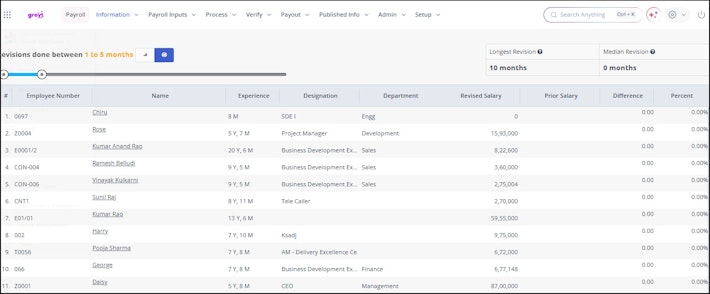
On the Salary Revision Analytics page, use the Revisions done between slider to drag the slider controls to select the required period. The slider control helps you view salary revision for a minimum of one month and a maximum of 30 months.
Click Revised/Not Revised icons adjacent to the Revisions done between slider to filter the employee list for the selected time frame. You can hover the mouse pointer on the icons to view icon names.
A list of the employees appears in the table with information such as Employee Number, Name, Experience, Designation, Department, Revised Salary, and Difference.
You can also download the list of employees with all the available information using the Export Excel option at the bottom of the table.
Related articles: