Calculate and Manage Employee Arrears in greytHR
Updated in February - 2026 | Subscribe to watch greytHR how-to video
Sometimes an employer may revise an employee's salary from retrospective effect, or a salary revision may happen, but the increments are paid out at a later date. In both cases, since the salary for previous periods is already disbursed, the differential amount known as arrears is paid out in a subsequent period. In such a situation, to avoid confusion, the arrears amount is computed and mentioned separately in the payslips.
The Arrears page in the greytHR Admin portal allows you to determine the difference between the revised salary and the actual salary of the employees for the specific months. The page displays the list of batches which expands and displays the employees' list.
To view the Arrears page, from the greytHR Admin portal, hover over the 9 dots and go to Payroll > Payroll Inputs > Arrears.
You can perform the following actions on the Arrears page:
Calculate arrears for the employees.
Process the arrears in batches for multiple employees.
Download the arrears details of an employee.
Calculate arrears for the employees
To calculate the arrears for the employees, from the greytHR Admin portal, hover over the 9 dots and go to Payroll > Payroll Inputs > Arrears.
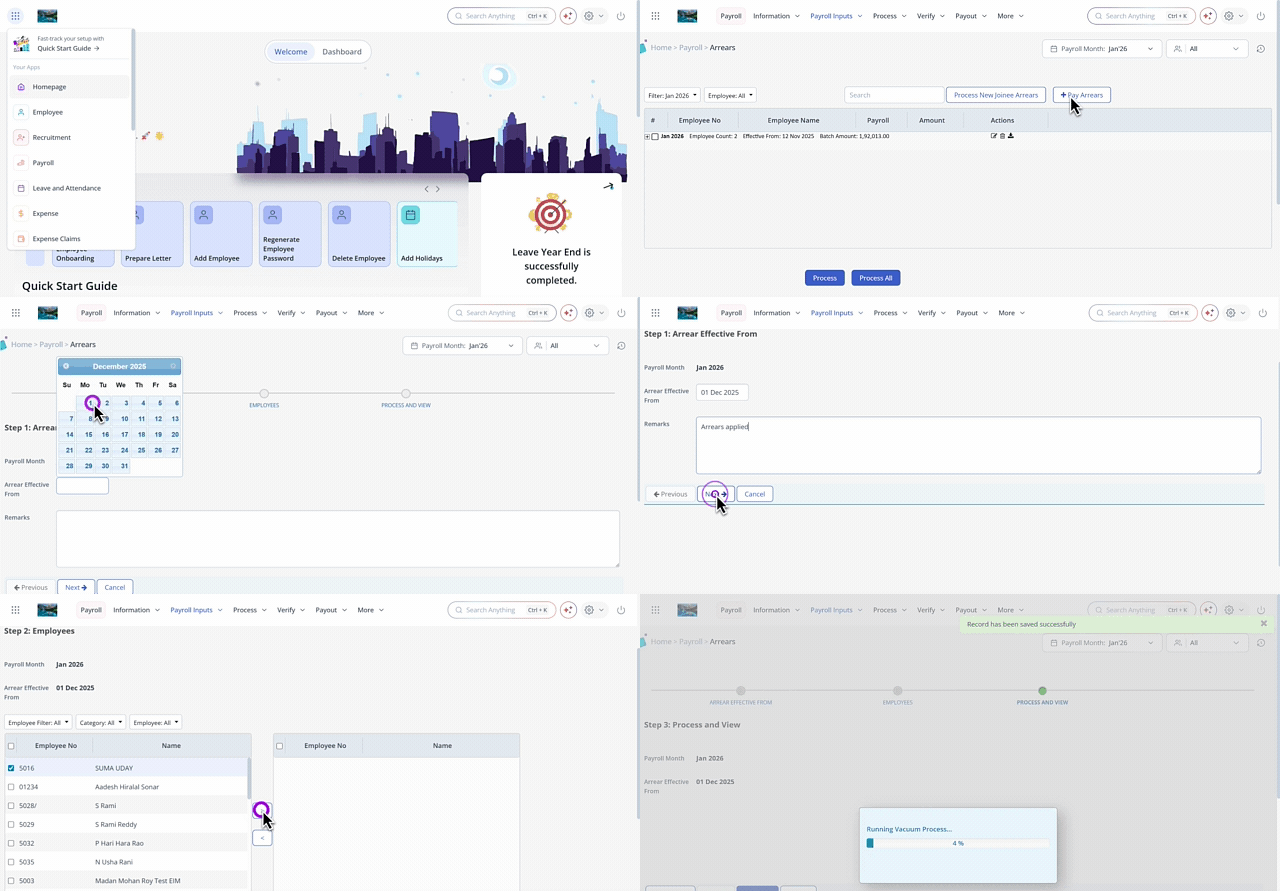
On the Arrears page, click + Pay Arrears. The Step 1: Arrear Effective From section appears.
From the Arrear Effective From dropdown calendar, select the required date.
In the Remarks textbox, enter the remarks if required.
Click Next. Step 2: Employees section appears.
Under Step 2: Employees section, using the Employee Filter, Category, and Employee filters, customize the list of employees as per your requirements.
Using the checkboxes available next to Employee No, select the employees.
Click > to drop the employees from the left to right column.
Click Next. The Step 3: Process and View section appears.
Select the employees from the list and click View Statement to download the arrear statement.
Click Finish to calculate the arrears. A success message appears. The Arrears page displays the employees for whom the arrears are calculated.
Note: You can calculate the arrears for the new employees by clicking the Process New Joinee Arrears button. To process the arrears for the new employees, the employees must be present in the current payroll month.
Process the arrears in batches for multiple employees
After completing the arrears calculation, you must process the arrears. It is a crucial step to ensure accurate payroll processing. To process the arrears in batches, from the greytHR Admin portal, hover over the 9 dots and go to Payroll > Payroll Inputs > Arrears.
On the Arrears page, a list of batches appears. Each batch contains the employees whose arrears calculations are complete.
From the Filter and Employee dropdown filters, select the required options to customize the list of batches.
Note: If you select the All option in the Filter dropdown list, the Process and Process All buttons are disabled.Double-click the required row. The row expands and displays the employees' list.
Select the employees from the list and click Process. You can select the entire batch using the check box and process the arrears.
Click Process All if you want to process arrears for all the batches.
Download the arrear details of an employee
To download the arrear details of an employee, from the greytHR Admin portal, hover over the 9 dots and go to Payroll > Payroll Inputs > Arrears.


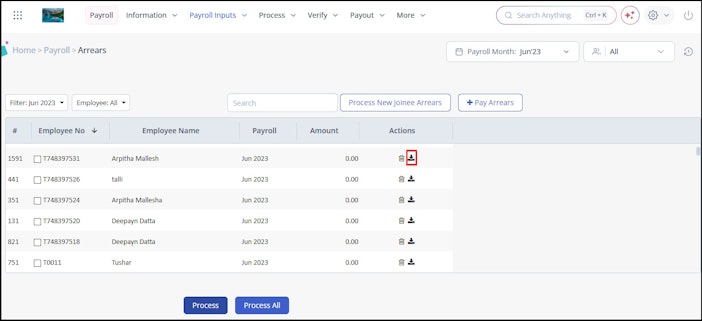
On the Arrears page, a list of batches appears. Each batch contains the list of employees whose arrears calculations are complete.
Double-click the required row. The row expands and displays the employees' list.
Click the Download icon available in the Actions column to download the arrear details of an employee or a batch.
Note: You can also edit/delete an employee’s or batch details using the Edit/Delete icon in the Actions column.
Related articles: