Calibrate Employee Performance Reviews Using greytHR
Updated in June - 2026 | Subscribe to watch greytHR how-to video
Performance reviews can vary widely in how they’re conducted and rated, even within the same organization. What one manager sees as “good” performance can be rated as “average” by another manager, leading to inconsistency and unfair outcomes.
To address this, greytHR introduces the Calibration feature in the Performance Management System module, a simple way to align performance ratings fairly and consistently.
It helps to reduce personal biases in how managers rate employees by ensuring the ratings accurately reflect actual performance. This leads to fairer and more accurate decisions on promotions, salary changes, and employee growth.
Using Calibration in greytHR
The Calibration feature includes:
Setting up the calibration policy.
Performing calibration using the Bell Curve method.
Finalising and publishing the calibrated ratings
Download the calibration policy report
Upload calibration policy ratings using Excel Importer
Setting up the calibration policy
The calibration policy setup in greytHR involves the following steps:
Create a calibration policy
Configure the calibration policy details
Activate the calibration policy
Create a calibration policy
To create a calibration policy, from your greytHR Admin portal, hover over the 9 dots and select Performance Management > Calibration.
On the Calibration page, click Create Policy.
On the Create Calibration Policy pop-up, select Create a new policy and enter the Policy Name, Performance Period, Review Duration, and Description.
Note: The Description field is optional.Click Next to create the calibration policy.
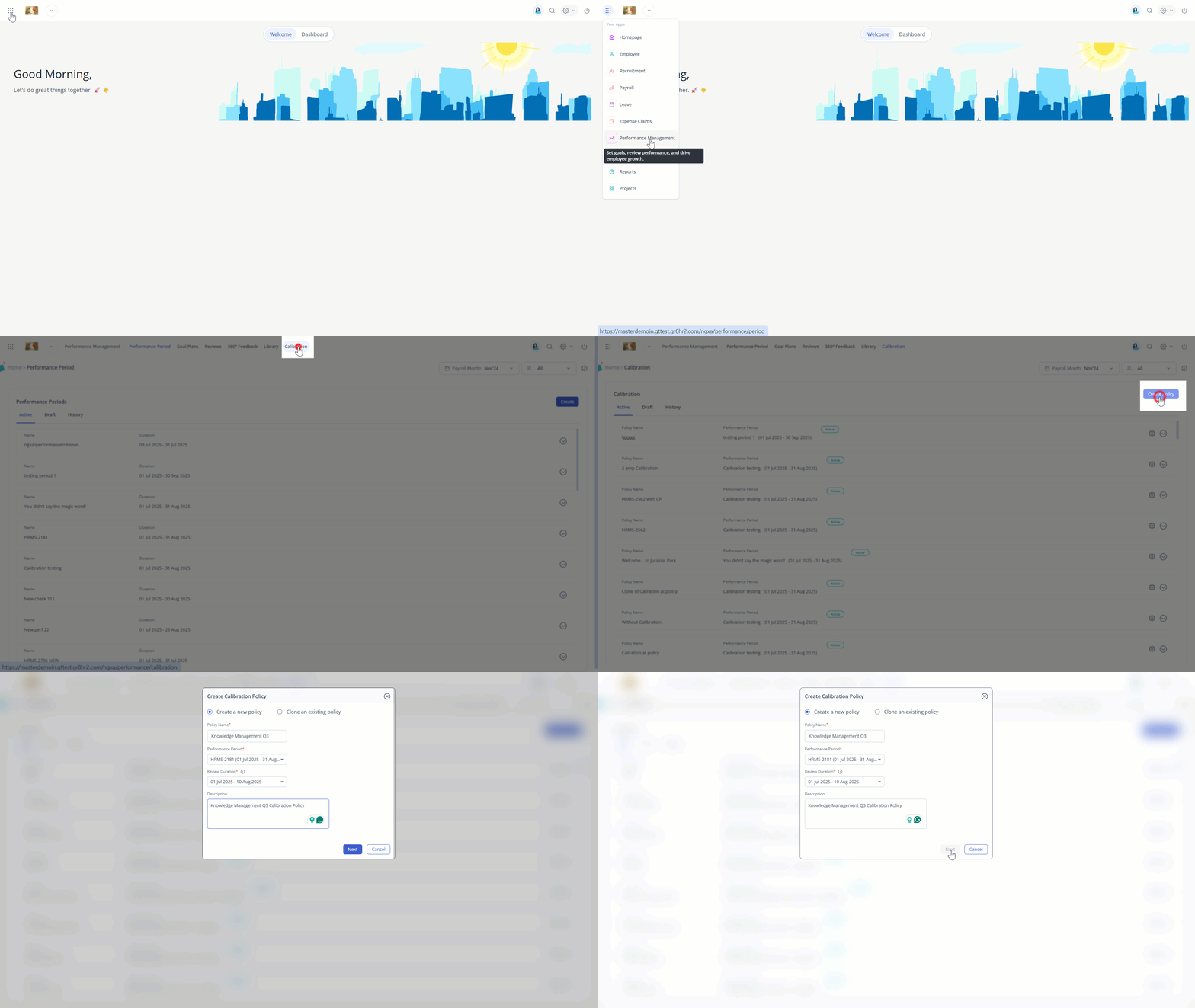
Note: If you want to create a duplicate of an existing policy, select Clone an existing policy and fill in the details.
After creating the calibration policy, you need to configure the policy details.
Configure the calibration policy details
Preview the policy details, including Policy Name, Performance Period, and Description, and then click Next.
Calibration Distribution
Select the Rating scale. You can select either a 5-point scale or 10-point scale.
Enter the Distribution.
Info: The bell curve method in calibration is a technique used to standardize performance ratings across a team or organization. It’s based on the idea that employee performance typically follows a normal distribution, like a bell-shaped curve.
Here’s how it typically works:
A small percentage of employees are rated as top performers.
A large majority fall into the average or meet expectations category.
Another small percentage is identified as low performers.
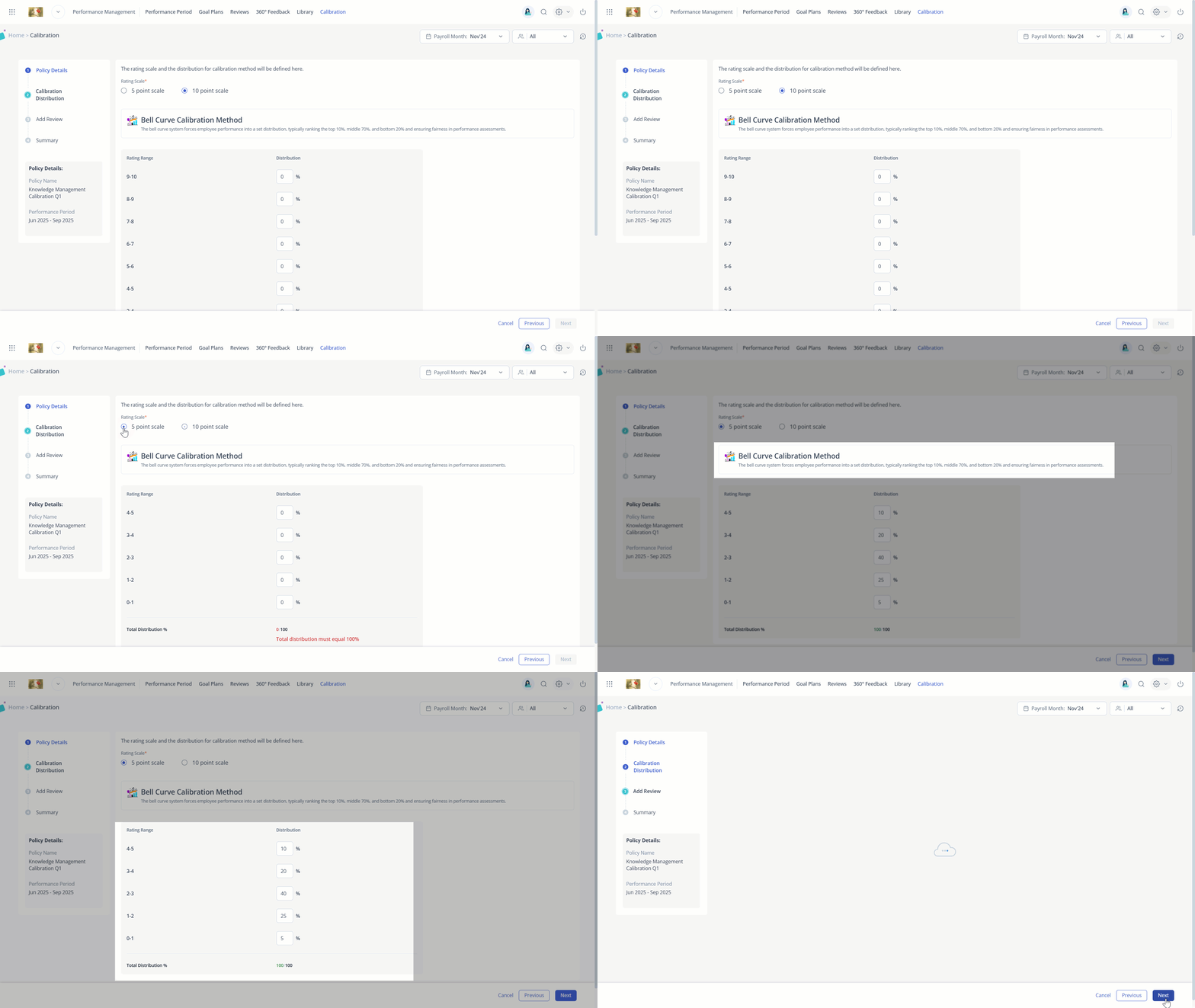
Example: Let’s say you’re using a 5-point rating scale. You can define the distribution like this:
| Rating Range | Distribution |
|---|---|
| 4 - 5 | 10% (Top performers) |
| 3 - 4 | 25% |
| 2-3 | 40% (Majority of employees) |
| 1-2 | 20% |
| 0-1 | 5% (Low performers) |
This setup assumes that:
Most employees (40%) are expected to perform at a solid, consistent level, so they receive a rating between 2 and 3.
Top performers (10%) stand out and receive a rating between 4 - 5.
A smaller group (5%) may need improvement and fall under rating 1.
Note: You can adjust the distribution % as per your company's requirements.
Add Reviews
Based on the Performance Period, Review Duration, and rating scale you have selected, the reviews will appear. Select the review(s) for which you want to perform the calibration. Only the reviews that match the exact Review Duration (start & end date) will show up for selection.


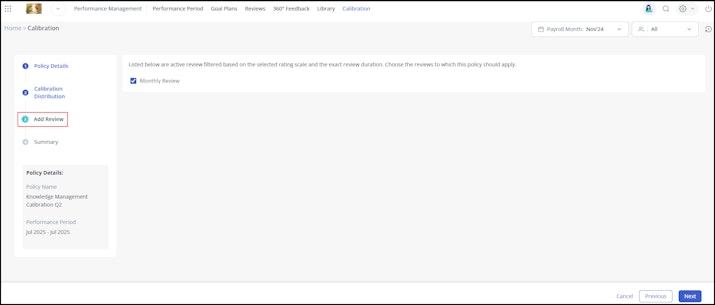
Note: If no reviews appear, you may need to change the Performance Period, Review Duration, or rating scale by clicking the Previous button and updating the details.
Summary
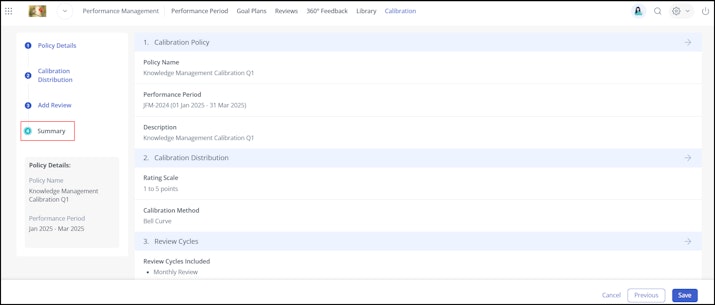
Under the Summary section, you can preview the information about the calibration policy and click Save.

Activate the calibration policy
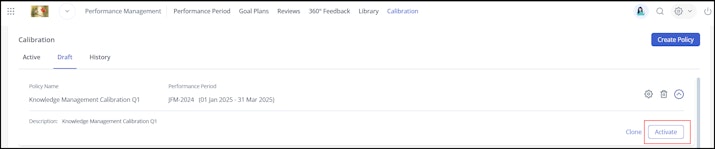
After the calibration policy configuration is completed, you must activate the policy from the Drafts tab. Click on the 🔽arrow, select the Activate option, and confirm the same.


Performing calibration using the bell curve method
After the calibration policy setup is completed, you can perform the calibration using the bell curve method for the selected reviews.
To perform the calibration, hover over the 9 dots and select Performance Management > Calibration.
Under the Active tab, select the required calibration policy and click View Details. The Calibration Policy Admin Control Panel page opens.
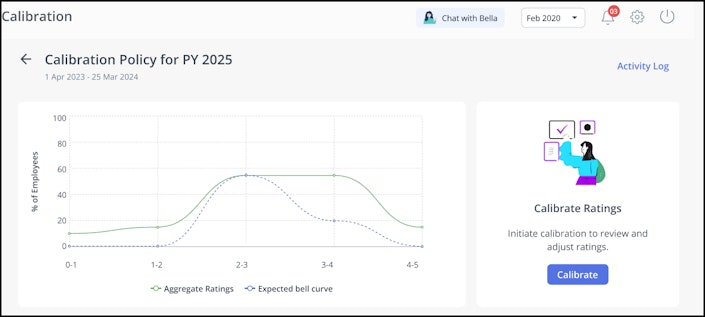
On top, you can view a graph showing the Aggregate Ratings (from the review) and the Expected bell curve (based on the calibration policy configuration).
Note: The purpose of calibration is to align the Aggregate Ratings curve with the Expected bell curve, ensuring ratings are distributed fairly and consistently across the organization.

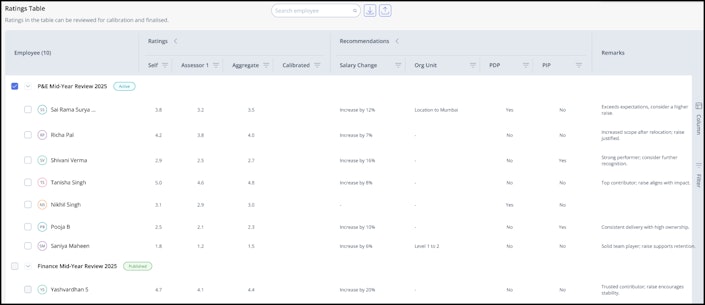
Under the Ratings Table section, you can view all the reviews selected for the calibration policy. You can expand each review to see the employees.


You can perform the calibration at:
Policy level
Review level
Calibration at the policy level
If you want to perform the calibration at the entire policy level, then select the Calibrate option. This will include all the Active reviews selected within the calibration policy, and you do not need to select the reviews manually.
Note: If a review is published, paused, or cancelled, it will not be considered for calibration by the system.On the Calibrate Ratings pop-up, select the Calibration option.
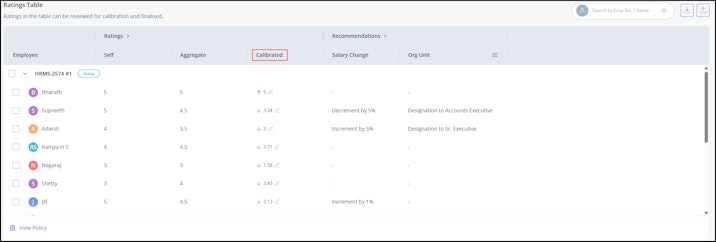
The system takes all the aggregate ratings, adjusts them based on the set distribution, and shows the calibrated ratings in the Ratings Table along with the increase or decrease icons.
You will also be able to view the Calibrated Ratings curve along with the Expected Bell Curve and Aggregate Ratings curve.


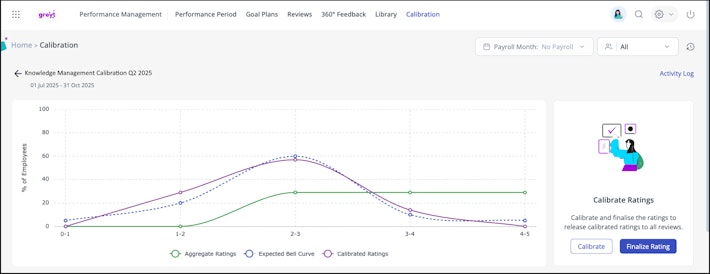
5. As an admin, you have the option to edit or override the calibrated ratings by clicking the Edit icon, if necessary.


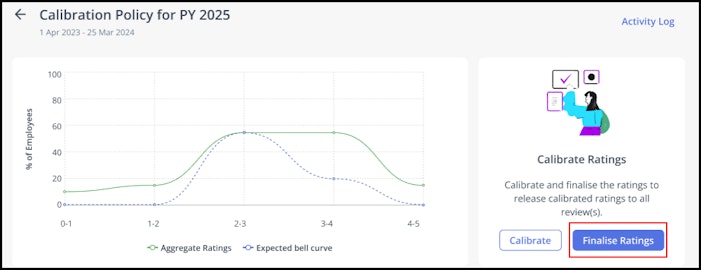
To show the calibration ratings in the Review, click the Finalise Ratings option and confirm the same.
Note: Once finalized, the calibration ratings will be pushed to the Reviews, and you won’t be able to make any changes to them.


Calibration at the Review level
You can manually select which review to calibrate.
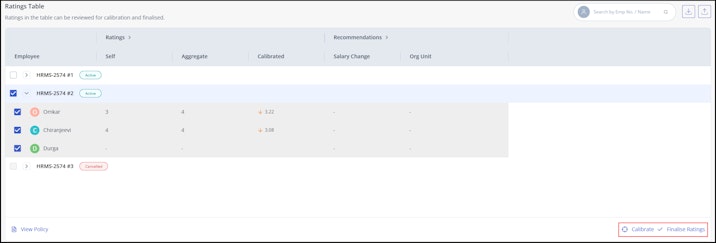
Select the review using the checkbox.
Click the Calibrate button at the bottom right of the screen to start the calibration process.
To show the calibration ratings in the Review, click the Finalise Ratings option at the bottom right of the screen and confirm the same.


View calibrated ratings in Review
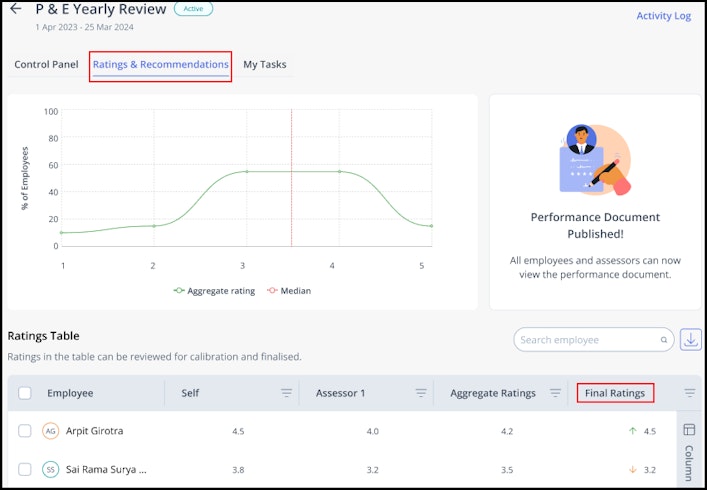
To view the calibration ratings in the Review, select Reviews > View Details > Ratings & Recommendations.
You can view the calibration ratings under the Final Ratings column in the Ratings Table.


📌 Note: Once calibration is enabled, it will only apply to new reviews created after the feature goes live. Any reviews that were already created before calibration was activated will remain unaffected and will continue as they are.
Publish the calibration ratings
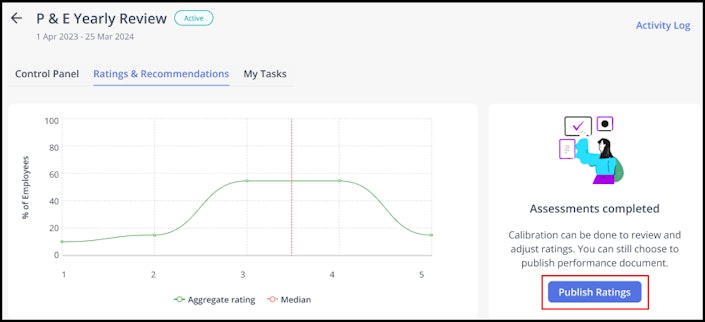
Once you have finalized calibration ratings, you can publish them to your employees. To do so, go to Reviews > select a review and click View Details > Ratings & Recommendations.
Click Publish Ratings.
Choose the rating type – Aggregate Ratings or Calibrated Ratings – that you want to publish to the employees.
Note: The employees will view it as a final rating.Click Confirm.


Download the calibration policy report
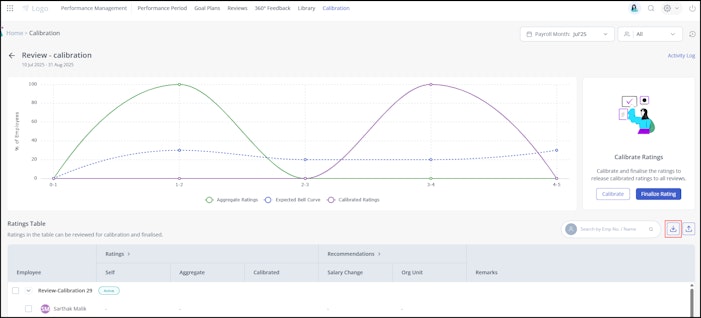
To download the calibration policy report, click the download icon on the Calibration Policy Admin Control Panel.
If you want to download the report for a specific Review, select the cycle using the checkbox and then click the download icon.


Upload calibration policy ratings
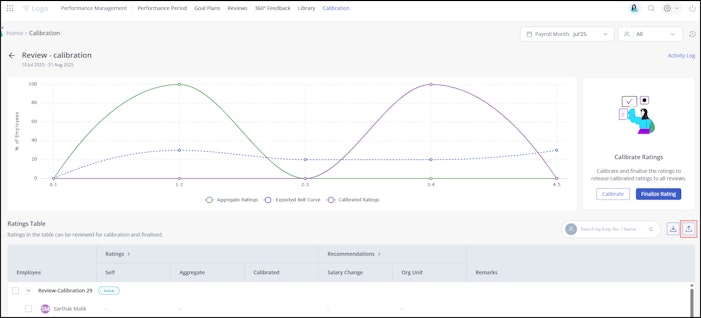
If you want to manually calibrate ratings or edit calibrated ratings in bulk, you can upload the data using the Import option.
Select Calibration from the Importer Type dropdown, download the sample file, fill in the required data, and upload it to complete the process.
Clone a calibration policy
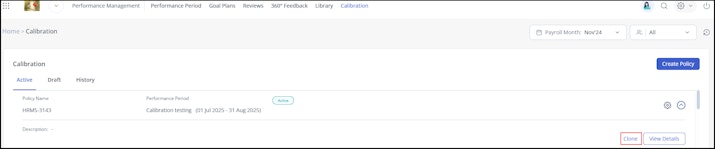
You can clone an existing calibration policy while creating a new one. Select Clone an existing policy and fill in the required details to create a copy with the same configuration.


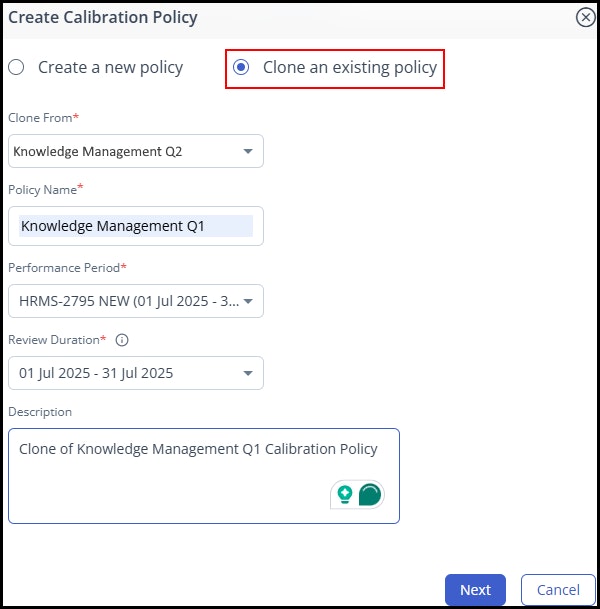
Alternatively, under the Active tab, select a calibration policy > expand using the down arrow> Clone. Follow the same steps as creating a new policy.


Delete a draft calibration policy
As an admin, currently, you can delete non-activated policies.
To delete the non-activated calibration policy, hover over the 9 dots and select Performance Management > Calibration.
Under the Drafts tab, select the calibration policy that you want to delete and click the Delete icon.
Click Confirm to delete the calibration policy.



Related articles: