Efficiently Release Employee Held Salary in greytHR
Updated in February - 2026| Subscribe to watch greytHR how-to video
An employee's salary may be held under certain circumstances, such as when the employee has not fulfilled their job responsibilities or has quit the organization and needs to be settled. Another case could be unauthorized absence; there can be n number of scenarios that can force your hand to hold an employee's salary. However, employers need to release the salary after sorting out the issue.
The Release Salary page in the greytHR Admin portal enables you to release the held salary of your employees. The page also provides an overview of held salary details such as Employee No, Name, Hold Payroll, Hold Salary Payout, Hold Reason, Released Month, Released Reason, and Status.
To view the Release Salary page, from the greytHR Admin portal, hover over the 9 dots and go to Payroll > Payroll Input > Release Salary.
You can perform the following actions on the Release Salary page:
Release salary of an employee.
Hold salary of an employee.
Release the salary of an employee
To release the salary of an employee, from the greytHR Admin portal, hover over the 9 dots and go to Payroll > Payroll Input > Release Salary.
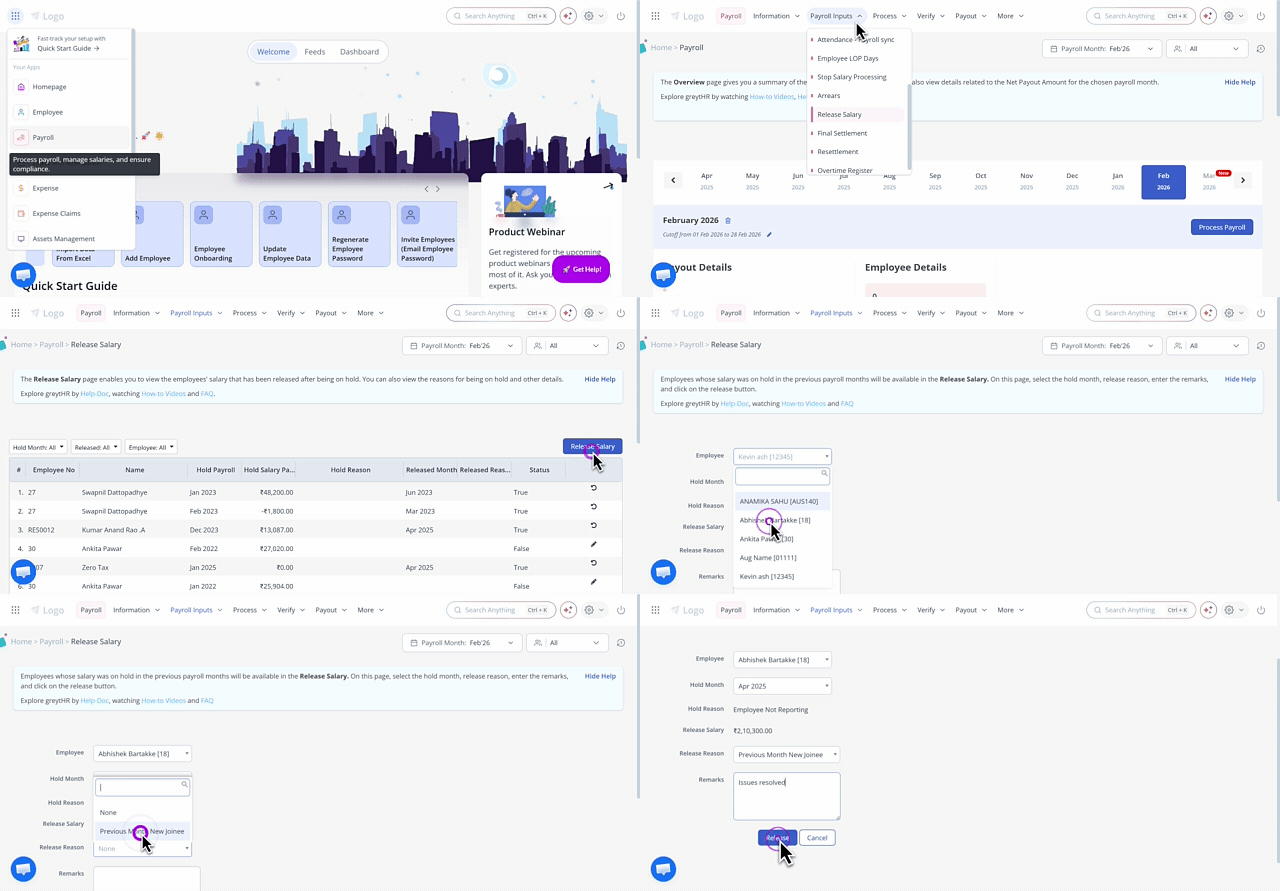
On the Release Salary page, click the Release Salary button. The form appears.
From the Employee dropdown list, select the required employee.
From the Hold Month dropdown list, select the month on which you had put the salary on hold.
From the Release Reason dropdown list, select the reason for releasing the salary.
In the Remarks text box, enter the remarks, if required.
Click Release to start the salary release process.
Click Confirm to complete the release.
Note:If an employee's salary is released, the employee will receive the released salary with the next salary. The held salary amount is not a part of the current month's taxable income. The employee can view the released salary amount in the payslip under the Gross section as Hold Salary.
To edit the released salary details of an employee, click the Edit icon available next to the Status column for the selected employee.
Hold salary of an employee
If you have released an employee's salary in the earlier months, the page provides you an option to hold the employee's salary again. To hold the salary for such an employee, hover over the 9 dots and go to Payroll > Payroll Input > Release Salary.
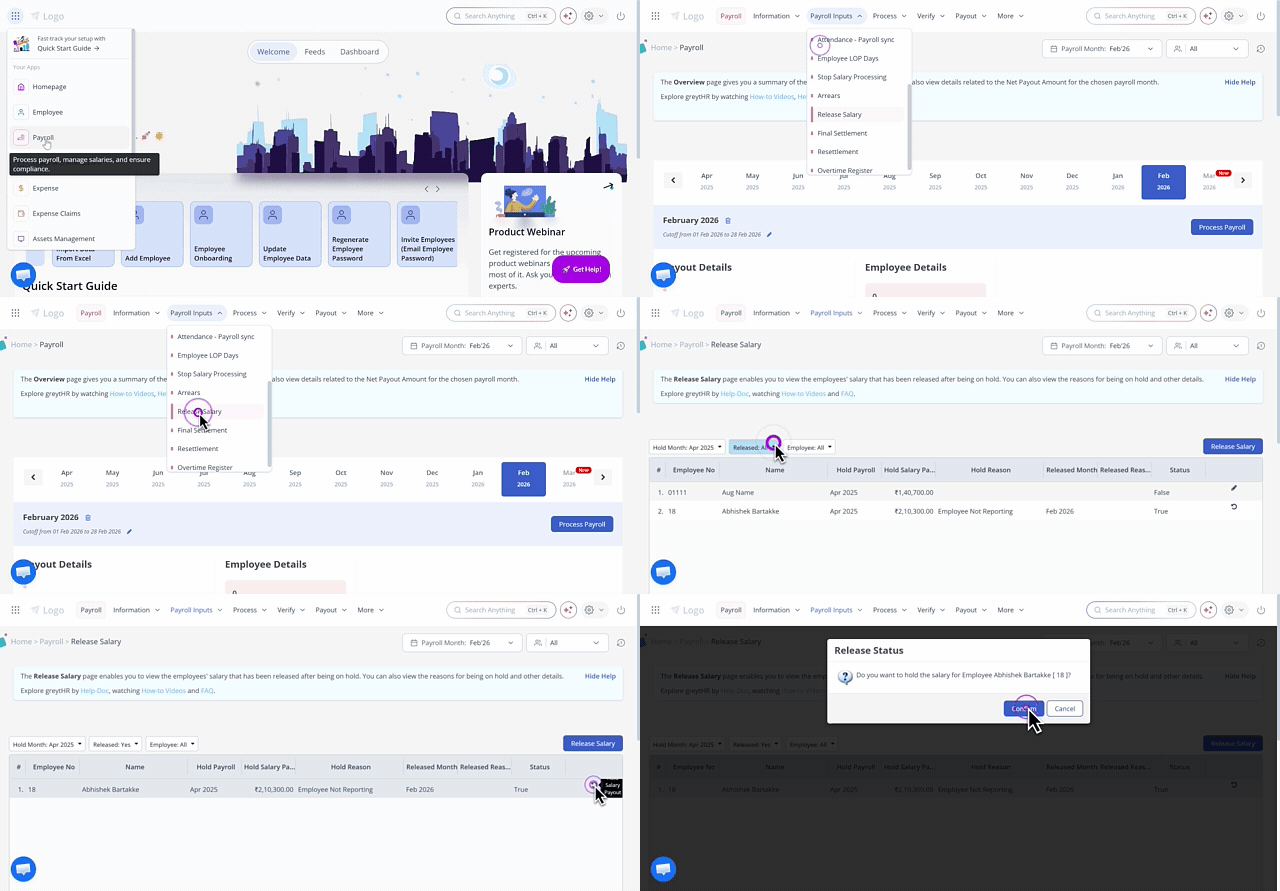
On the Release Salary page, using the Hold Month and Employee dropdown filters, customize the list of employees.
From the Released dropdown filter, select Yes.
Click the ↻ icon available next to the Status column for the selected employee. The Release Status pop-up appears.
Click Confirm to hold the salary payout for the selected employee.
Related articles: