Efficiently Manage Employee LOP Days Using greytHR
Updated in February - 2026 | Subscribe to watch greytHR how-to video
Loss of Pay (LOP) days are unpaid absences from work, including unpaid sick days, leaves of absence, or other uncovered absences. Updating employee LOP days is crucial for calculating wages accurately. It means deducting the appropriate amount from the salary or wages based on the number of LOP days. Accurate tracking of LOP days helps manage labor costs and prevents overpayment for unpaid absences.
The Employee LOP Days page in the greytHR Admin portal enables you to manually update an employee's loss of pay (LOP) days. You can also view the list of employees whose LOP details are already updated. The page displays the employee details such as Name, Join Date, Work Days, and LOP.
Watch this video to know more about how to manage the employee LOP days in greytHR:
View and update the LOP days of an employee
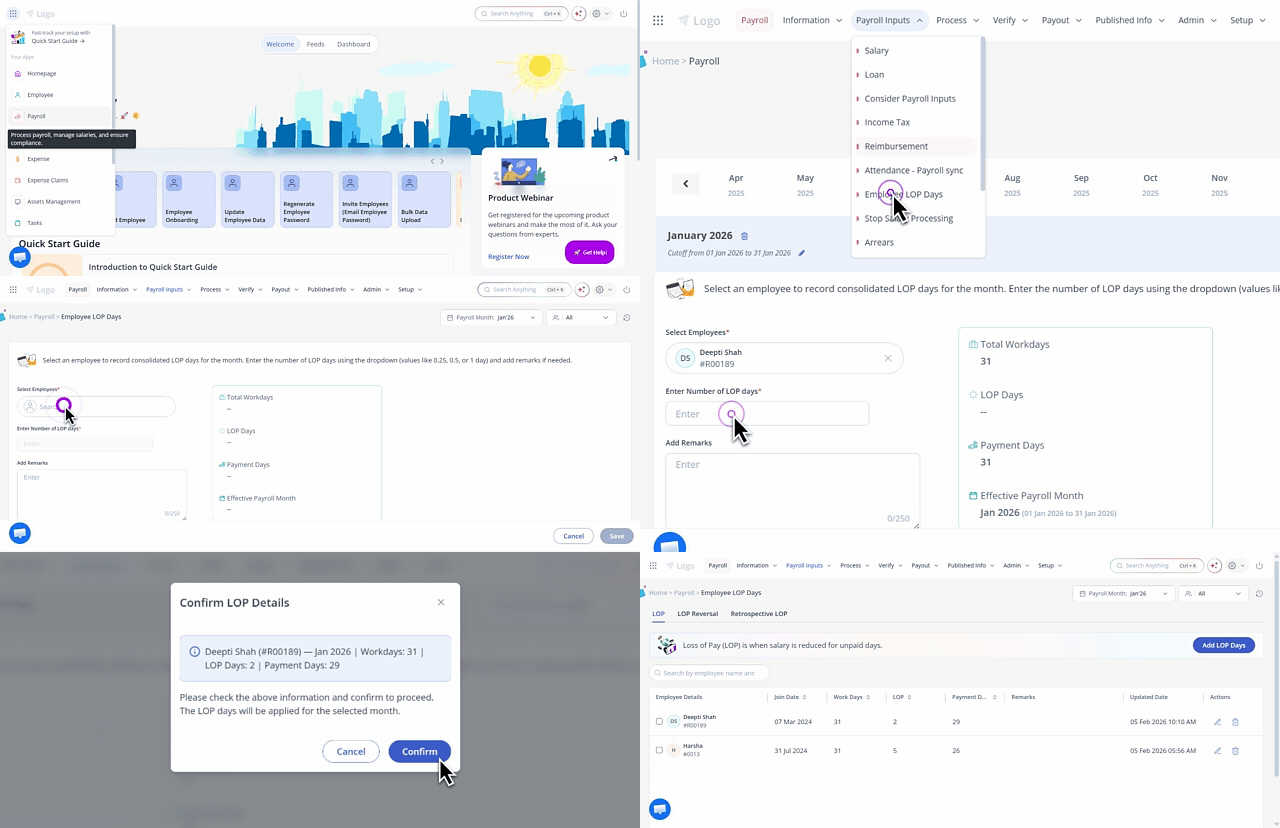
To view and update an employee’s LOP details, from the greytHR Admin portal, hover over the 9 dots and select Payroll > Payroll Inputs > Employee LOP Days.
Under the LOP tab, you can view the list of employees for whom the LOP days are updated. You can also use the search box to find the LOP details of an employee.
Click Add LOP Days to add the LOP days for an employee. The form opens.
From the Select Employee search box, enter the name or number of the employee whose LOP days you want to update.
Once you select an employee, Total Workdays, LOP Days, Payment Days, and the Effective Payroll Month are displayed. Any LOP added is automatically adjusted in this summary.
In the Enter Number of LOP days text box, enter the number of days marked as loss of pay for the selected employee.
In the Add Remarks text box, enter the remarks, if required.
Click Save to add the LOP days for an employee. A success message appears. Click Confirm. The employee's LOP days are visible on the page.
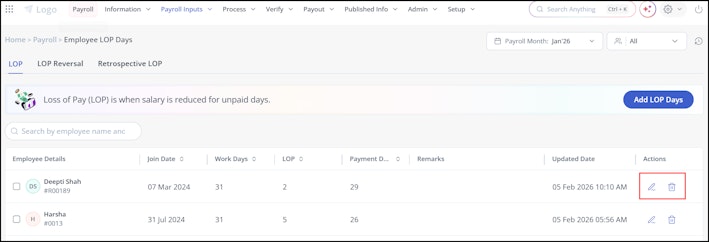
Note: To edit or delete the LOP days of the employee, click the respective icon under the Actions section on the Employee LOP Days > LOP tab.


Reverse LOP days for an employee
LOP Reversal lets you restore previously deducted LOP days to the employee’s payable salary.
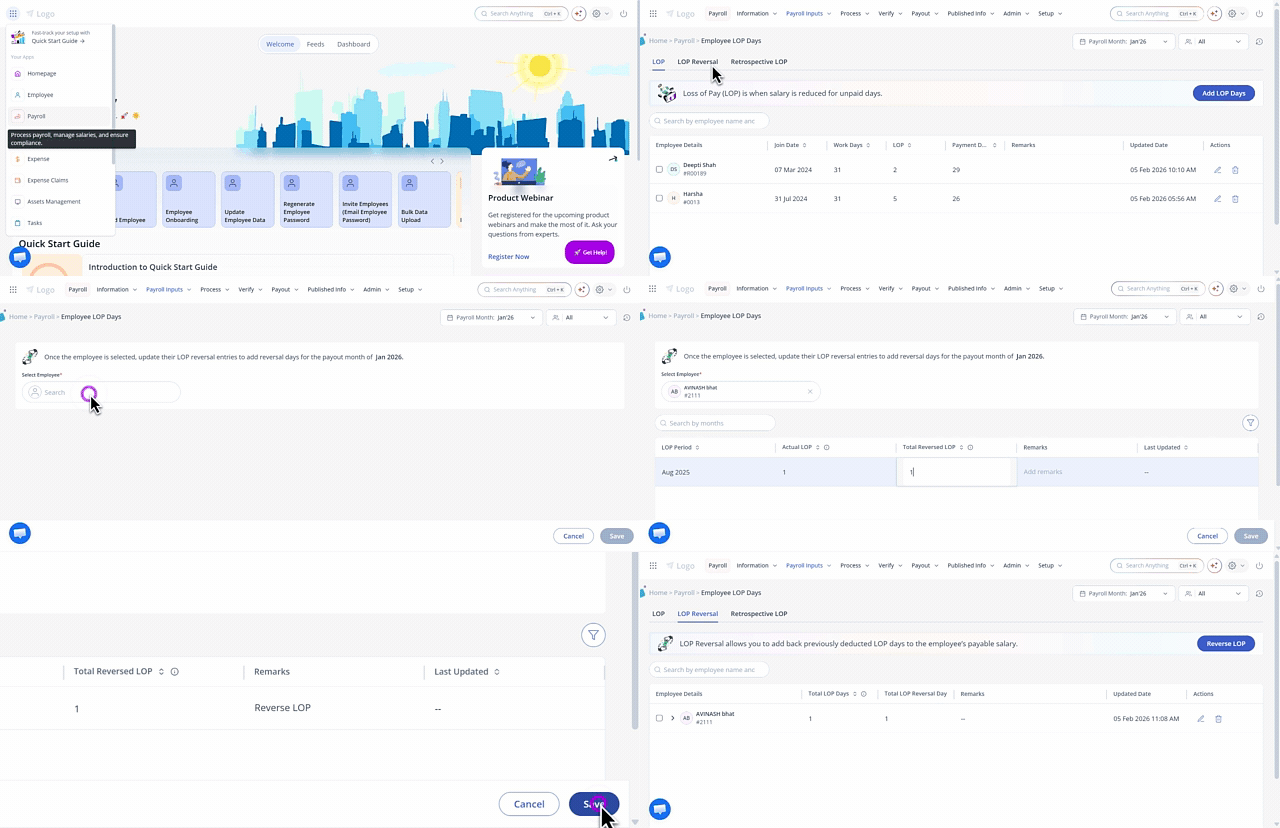
To reverse an employee’s LOP days, from the greytHR Admin portal, hover over the 9 dots and select Payroll > Payroll Inputs > Employee LOP Days > LOP Reversal.
Under the LOP Reversal tab, you can view the list of employees for whom the LOP days are reversed. You can also use the search box to find the reversed LOP details of an employee.
Click Reverse LOP to reverse the LOP days for an employee. The form opens.
From the Select Employee search box, enter the name or number of the employee whose LOP days you want to reverse.
The system displays the LOP period along with the number of LOP days and reversed LOP days (if any).
Admins can control the number of months displayed by configuring the Reversal Month Range setting under System Settings > Payroll > Payroll Preferences, with a minimum limit of 1 month and a maximum limit of 12 months.
After expanding a LOP period for the particular date, double-click on the Reverse LOP text box and enter the number of reversed LOP day(s).
Click Save and confirm the details. The reversed LOP details are updated on the page.
Info:
If payroll is locked for a month, it must be unlocked to add/reverse LOP days before processing payroll.
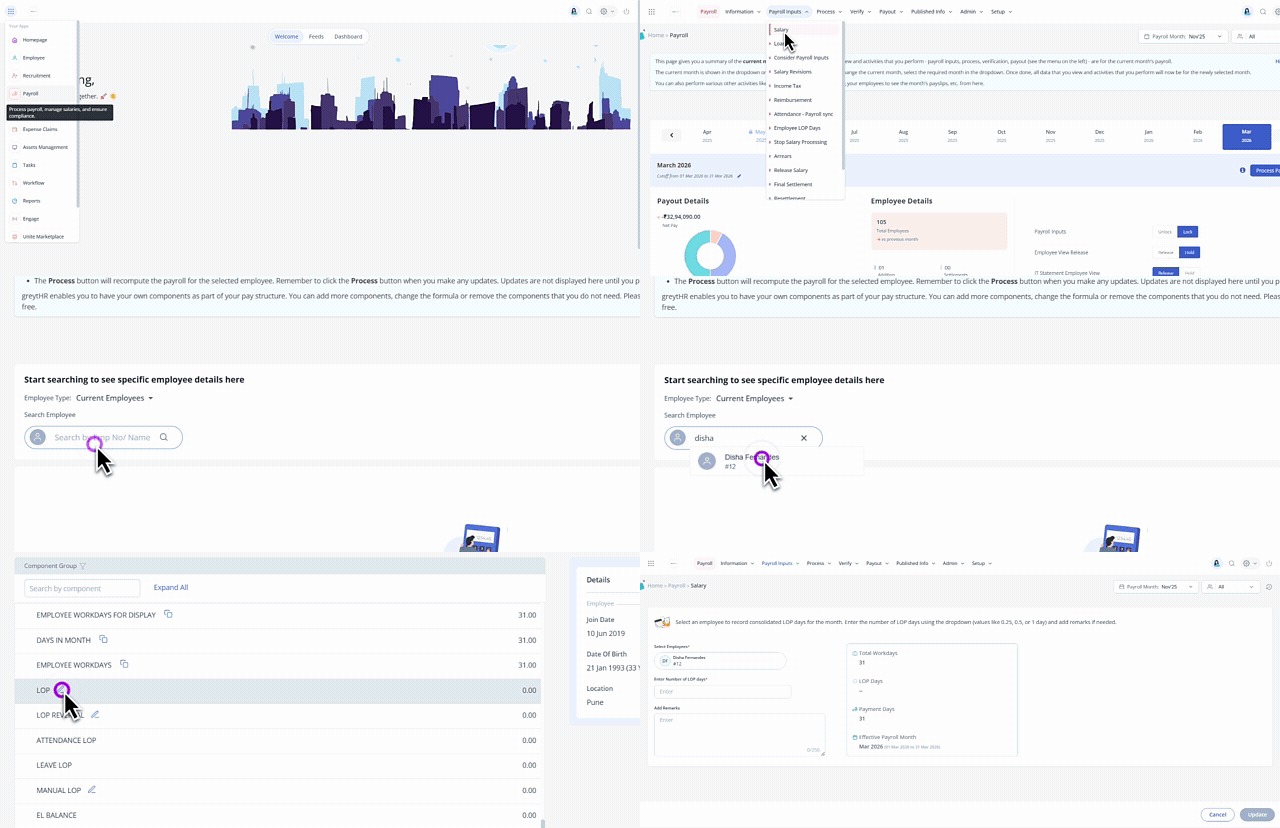
When updating salary components related to LOP or LOP Reversal for an employee under Payroll > Payroll Inputs > Salary, clicking the component redirects you to the respective Employee LOP Days > LOP or LOP Reversal page to add the required details.
Attendance-based LOP days and payroll reprocessing
If your organization has enabled Attendance LOPs settings, the LOP days are automatically picked from the Leave and Attendance module and displayed on the Employee LOP Days page. As an admin, you can view the work days, payment days, and LOP days, but you cannot add or modify LOP days on this page.


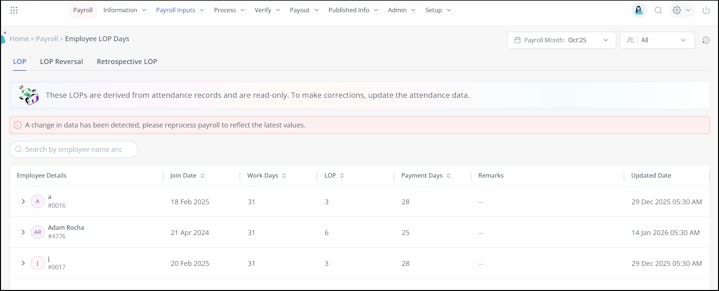
Before attendance details are finalized for a month, you may process payroll to add components such as bonus details. Later, once the attendance is finalized, there may be changes to LOP data compared to the last payroll run.
To notify you about this, a banner is displayed on the Employee LOP Days page indicating that attendance data has changed. In this case, you must reprocess payroll to ensure the LOP days pulled from the Attendance module are up to date.
Other related links: