Manage Employee Salary Holds Effectively Using greytHR
Updated in February - 2026 | Subscribe to watch greytHR how-to video
In some situations, an employer may need to hold an employee's salary payout for various reasons. Employers should also ensure that holding an employee's salary payout complies with applicable labor laws and regulations.
The purpose of holding an employee's salary payout is to ensure that the employee meets certain obligations or requirements before receiving their pay.
The Hold Salary Payout page in the greytHR Admin portal allows you to hold the gross salary of an employee. Holding an employee's payout means stopping the salary payment of an employee. You can calculate and remit all the statutory components such as PF, ESI, and Income Tax. Only the gross amount is put on hold.
You may need to hold back the employee's salary for various reasons. Employees might be absconding or serving the notice period, or vital employee details might be incomplete.
The page displays the list of employees whose salaries are on hold. You can also view employee information such as Employee No, Name, Hold Salary Payout, and Hold Reason.
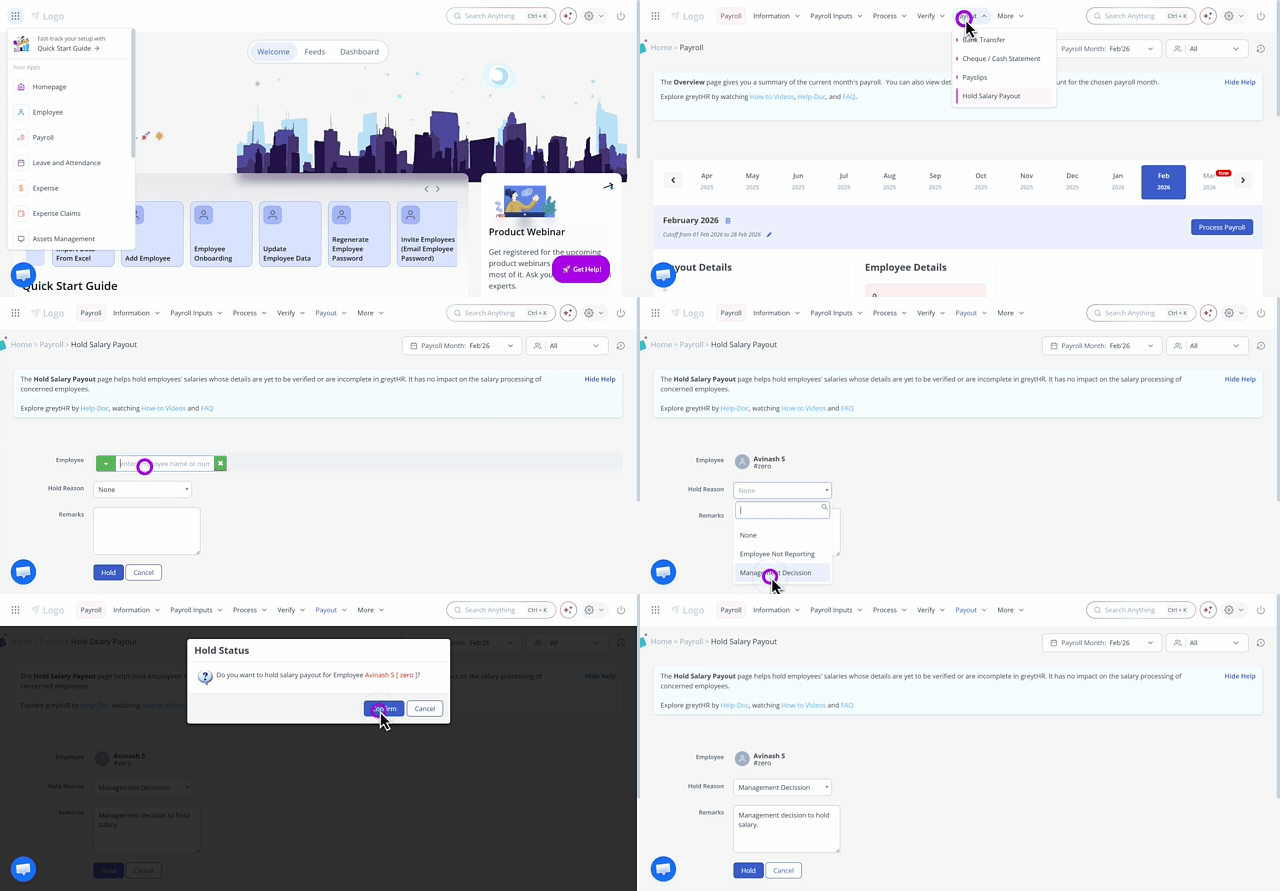
To view the Hold Salary Payout page, from the greytHR Admin portal, hover over the 9 dots and go to Payroll > Payout > Hold Salary Payout.
Hold an employee's salary
To hold an employee's salary, from the greytHR Admin portal, hover over the 9 dots and go to Payroll > Payout > Hold Salary Payout.
On the Hold Salary Payout page, click Hold Salary Payout. The form appears.
From the Employee dropdown search box, search for the employee whose salary you want to put on hold.
From the Hold Reason dropdown list, select the reason for holding the employee's salary.
In the Remarks description box, enter the remarks, if any.
Click Hold. The Hold Status pop-up appears.
Click Confirm to hold the salary payout for the selected employee. The success message appears.
Related articles: