Efficiently Manage Employee Reimbursements in greytHR
Updated in February- 2026 | Subscribe to watch greytHR how-to video
Reimbursement is an important part of any organization's employee benefits program. It allows employees to be reimbursed for work-related expenses, such as travel, training, and equipment purchases.
Reimbursement policies help to establish clear guidelines and procedures to ensure that expenses are reasonable and necessary. An effective reimbursement process can also help to reduce financial risk and ensure compliance with tax laws and regulations.
The Reimbursement page in the greytHR Admin portal helps you view the reimbursement claims. The page displays various types of reimbursements your company has to offer. Each claim displays claim-related information such as Date and Amount. You can also view the amount the selected employee is entitled to under each claim and the total excess claim posted by the employee.
To view the Reimbursement page, hover over the 9 dots and select Payroll > Payroll Inputs > Reimbursement.
Watch this video to know more about Reimbursement in greytHR.
You can perform the following actions on the Reimbursement page:
Add a new claim on behalf of an employee.
Increase the claim eligibility amount.
Add a new claim on behalf of an employee
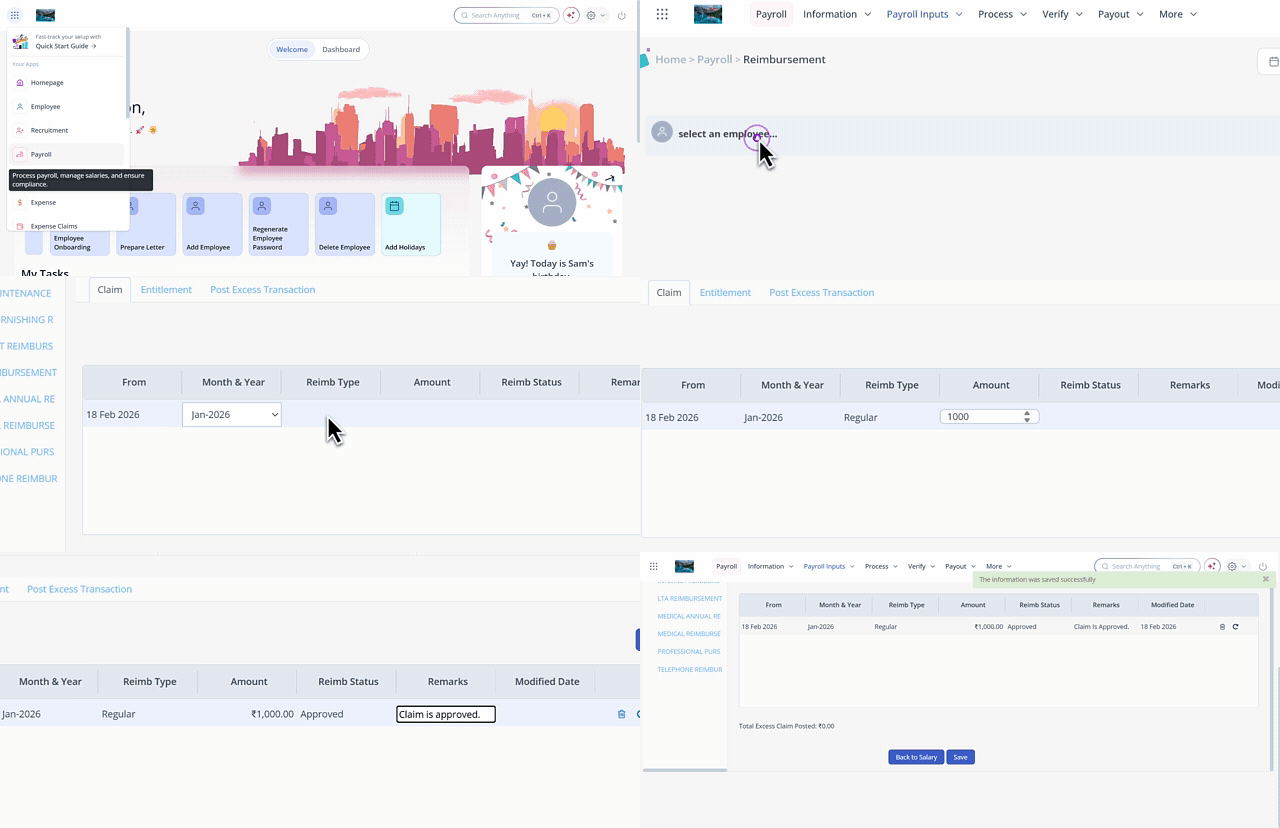
To add a new claim on behalf of an employee, from the greytHR Admin portal, hover over the 9 dots and select Payroll > Payroll Inputs > Reimbursement.
On the Reimbursement page, from the select an employee search box, enter the employee number or name for whom you want to add the information.
From the reimbursement categories list, select the required reimbursement category.
The page displays all the claims made by employees under the selected category.Under the Claim tab, click the Add button to add a new claim. A new row appears in the table.
In the new row, double-click the Month & Year cell to select the month and year from the dropdown list.
Double-click the Reimb Type cell and select the required reimbursement type from the dropdown list.
Double-click the Amount cell to enter the claim amount.
Double-click the Reimb Status to select the current status of the reimbursement.
Double-click the Remarks cell and enter the remarks, if any.
Click Save to save the changes. The new claim row appears on the Reimbursement page.
Note: Click the Delete icon on the claim row to delete a claim.
Increase claim eligibility amount
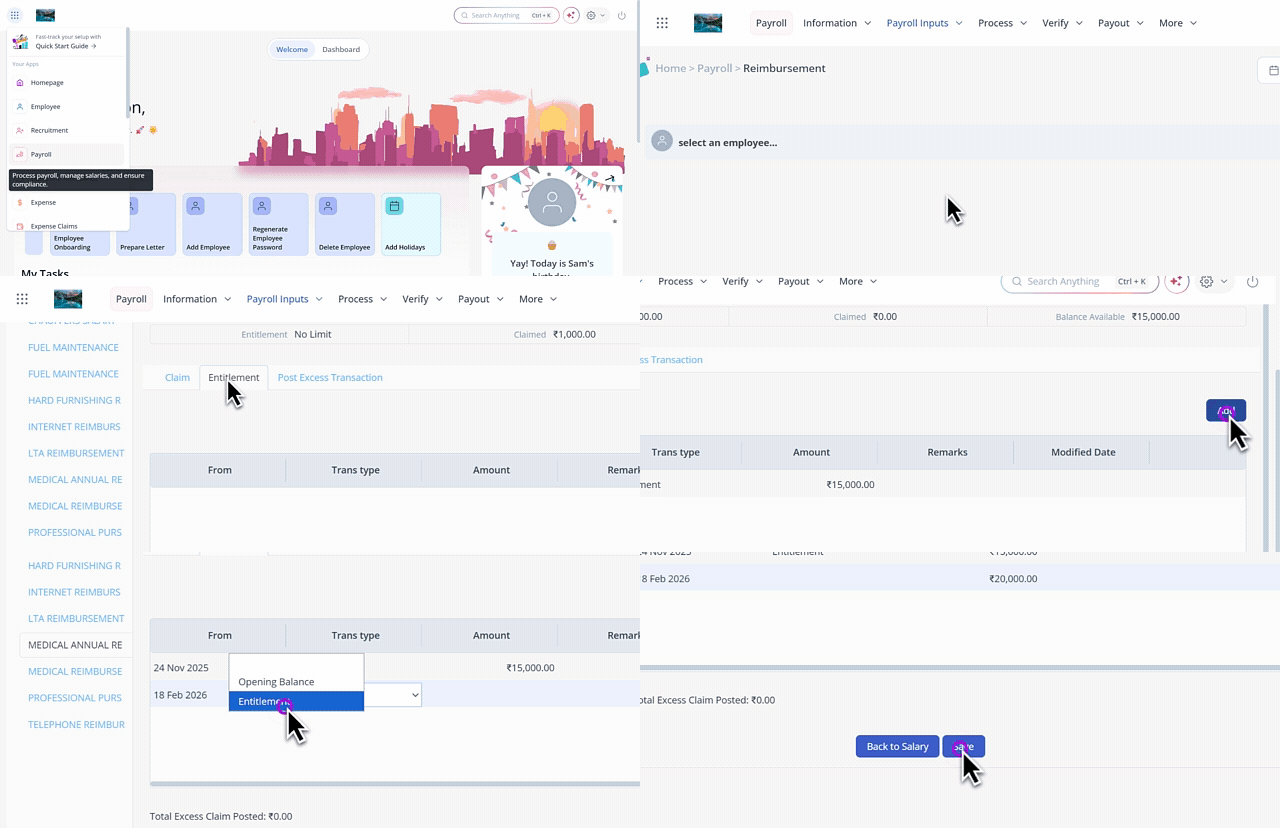
To increase the claim eligibility amount, from the greytHR Admin portal, hover over the 9 dots and select Payroll > Payroll Inputs > Reimbursement.
On the Reimbursement page, from the select an employee search box, enter the employee number or name for whom you want to add the information.
From the reimbursement categories list, select the required reimbursement category.
Under the Entitlement tab, click the Add button. A new row appears in the table.
In the new row, double-click the Trans Type cell and select the required transaction type from the dropdown list.
Double-click the Amount cell and enter the amount.
Double-click the Remarks cell and enter the remarks, if any.
Click Save to save the changes. The new entitlement row appears on the Reimbursement page.
Note: Click the Delete icon on the entitlement row to delete a transaction.
Other related links: