Use greytHR to Add Retrospective LOP for Payroll Accuracy
Updated in February - 2026 | Subscribe to watch greytHR how-to video
In an organization, there may be situations where an employee’s LOP for a previous month was missed, and the salary was processed without deducting those LOP days. If the missed LOP days are identified later, the required LOP must be deducted in a subsequent payroll run.
greytHR introduces the Retrospective LOP feature in the Payroll module, which allows you, as an admin, to deduct an employee’s LOP even if it was previously missed and adjust it in the current payroll month.
Watch this video to know more about the Retrospective LOP feature in greytHR:
Add a retrospective LOP for an employee
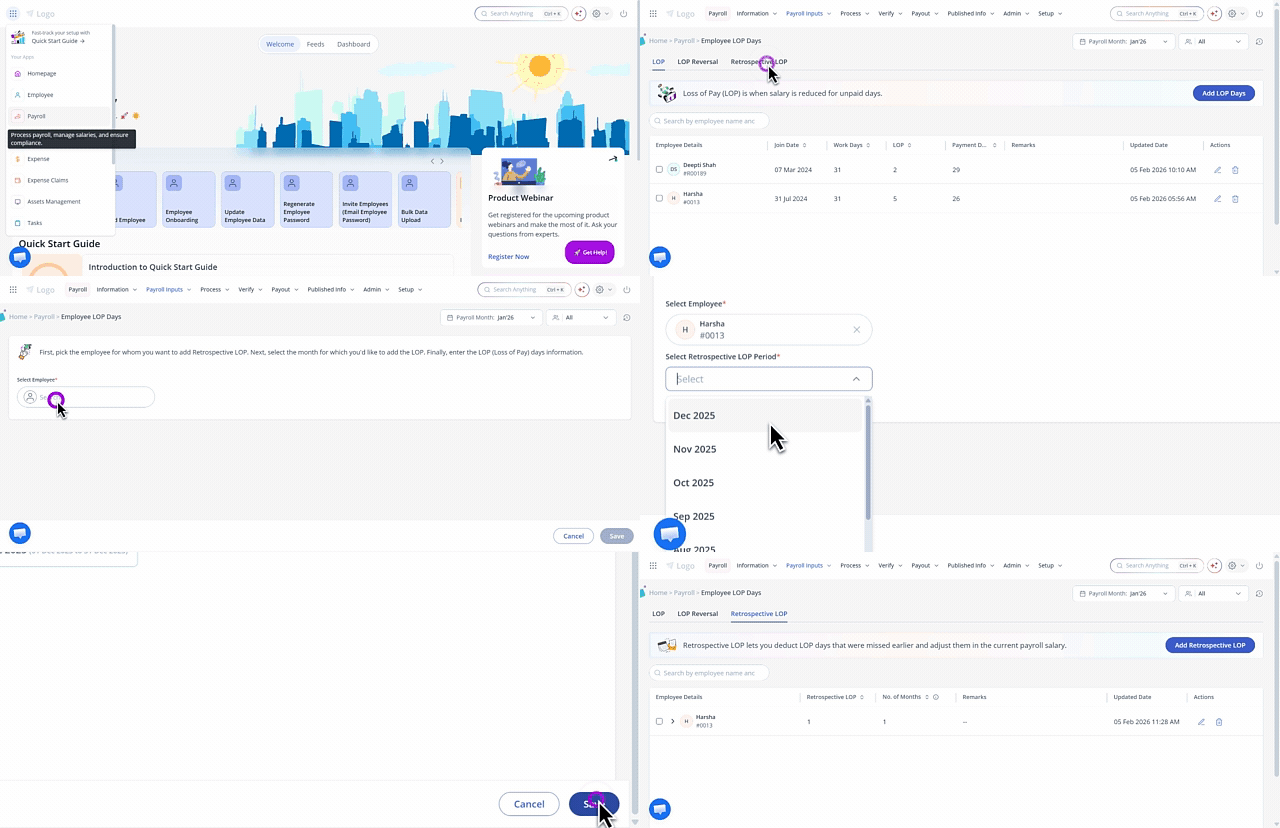
To add retrospective LOP for an employee, from the greytHR Admin portal, hover over the 9 dots and select Payroll > Payroll Inputs > Employee LOP Days > Retrospective LOP.
Under the Retrospective LOP tab, you can view the list of employees for whom missed LOP days have been added. You can also use the search box to quickly find an employee’s retrospective LOP details.
Click Add Retrospective LOP. The form opens.
From the Select Employee search box, enter the name or number of the employee whose missed LOP days you want to deduct.
In the Select Retrospective LOP Period field, select the month for which you want to add the LOP days.
The system displays the total workdays, retrospective LOP days, and the effective month for which the retrospective LOP is being applied.
In the Enter number of Retrospective LOP days field, enter the required number of days.
Add Remarks if needed and click Save. A confirmation message pops up. Click Confirm to save the changes.
For example, if an employee had 3 LOP days in February that were missed earlier, and you add them as Retrospective LOP in April, the salary deduction for those 3 February days will be applied in the April payroll.
Note:
If an LOP Reversal already exists for the same LOP month and payout month, the latest entry replaces the earlier one. For example, if LOP was reversed for February and you later add a Retrospective LOP for February in April, the latest retrospective entry is considered.
After payroll for the current month is processed, the Salary page displays the LOP Reversal component as a negative value, indicating the missed LOP days that are now being deducted.
To edit or delete the LOP days of the employee, click the respective icon under the Actions section on the Employee LOP Days > Retrospective LOP tab.
Other related links: