Use greytHR to Monitor Payroll Accuracy and User Activity
Updated in May - 2026 | Subscribe to watch greytHR how-to video
Running payroll requires not just accurate employee information but also, secure and traceable system activity. Missing employee data or unmonitored user actions can lead to payroll delays, compliance issues, and audit risks.
To help avoid these challenges, greytHR provides reports that surface data gaps and capture user activity, ensuring payroll is processed with accuracy and transparency.
The following reports can be used by admins to review, validate, and monitor payroll-critical information:
Payroll Anomalies Report
The Payroll Anomalies Report highlights employees with missing, incomplete, or invalid data fields. It helps HR and Payroll Administrators detect errors before payroll processing and correct them in advance. To generate Payroll Anomalies Report, from the greytHR Admin portal, hover on the 9 dots and go to Reports > Reports > Reports Gallery.
In the search box, enter Payroll Anomalies Report.
Choose whether to generate for all employees or selected employees.
Select the Report Output Type (Excel or HTML).
Click Generate.


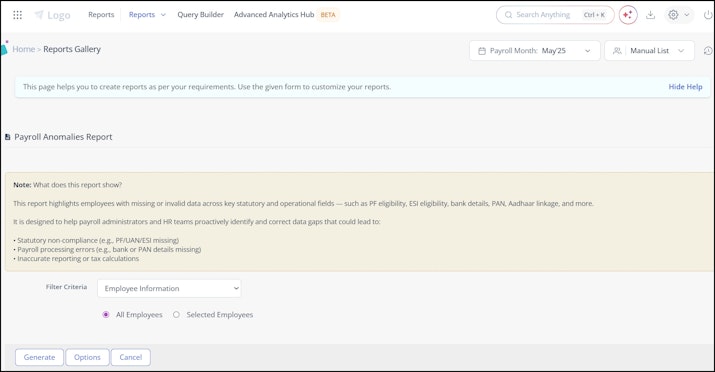
Data validated in this report includes:
Date of Birth, PF/ESI/LWF eligibility, UAN, PAN, Aadhaar linkage.
Bank details, IFSC, and payment type.
Employee position history for consistency.
Report output values:
Available / Not available – for DOB, PF Number, UAN, Bank Details, PAN.
Enabled / Not enabled – for PF/ESI eligibility, PAN verification.
Linked / Not linked – for Aadhaar–PAN linkage.
Note: If any field or data is missing then it can be updated from the Information section under Employee module.
User Activity Log Report
The User Activity Log Report provides visibility into the actions performed by users on the greytHR platform. It supports monitoring, compliance, and accountability by recording every important step taken by system users. To generate the User Activity Log Report, from the greytHR Admin portal, hover on the 9 dots and go to Reports > Reports > Reports Gallery.
From Reports Gallery in the search box, enter User Activity Log Report.
Select filters such as user role, activity type, or date range.
From Options Choose the Report Output Type (Excel or HTML).
Click Generate.


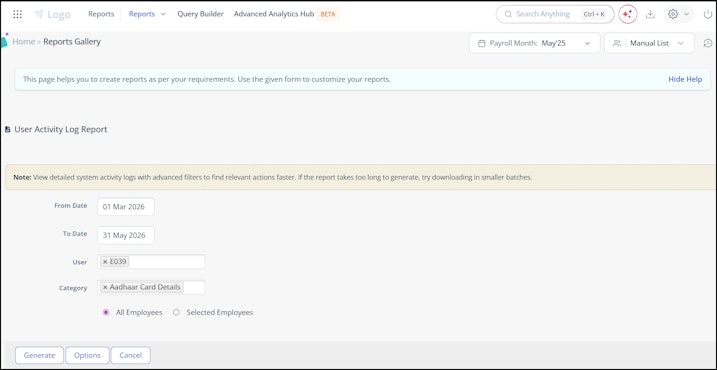
Key details captured in this report:
User login and logout activities.
Changes or updates made in employee records.
Payroll processing actions performed.
Access to sensitive payroll data.
This report also serves as an audit trail to detect unusual activity and maintain system integrity.
Related article:
Monitor payroll accuracy and system activity through reports