Explore greytHR NAVOS: Enhance HR Efficiency with greytHR
Updated in March - 2026 | Subscribe to watch greytHR how-to video
The greytHR platform is packed with powerful features that simplify your HR tasks. However, in your day-to-day use, you may sometimes spend extra time navigating multiple steps or finding what you need, leading to a loss of time.
To solve this, greytHR introduces NAVOS — an AI assistant built right into the platform that provides instant answers, guides you to features, and makes greytHR more intuitive and user-friendly. It helps you work faster, boost productivity, and get more things done with ease.
What is greytHR NAVOS ?
greytHR NAVOS is an AI-driven system that enhances the user experience across the entire greytHR platform. It’s not a single feature, but a collection of interconnected capabilities designed to make greytHR smarter, simpler, and more intuitive.
AI-Enriched Search: A universal search bar that understands natural language queries and delivers relevant results across modules, employee directory, reports, system pages, settings, partner apps, knowledge base, and support.
AI Co-pilot: An AI assistant that helps users complete critical or complex actions instantly.
For example, earlier, to add LOP for an employee, you had to navigate through Payroll > Payroll Inputs > Employee LOP Days > Add LOP Days and then select the employee to enter details.
With the NAVOS, you can simply type “Add LOP for [employee name] on [date]”, and it will take you directly to the Employee LOP Days page—no manual navigation needed. The Co-pilot does it for you automatically.
AI-Enriched Chatbot: A responsive, context-aware chatbot that provides conversational answers, helping users resolve queries faster than traditional support bots.
Watch this video to know more about NAVOS.
Benefits of using the greytHR NAVOS
Enhances efficiency and productivity by reducing time spent searching and automating tasks.
Provides instant answers to queries through an AI-powered chatbot.
Helps discover hidden features within greytHR.
Simplifies navigation with a universal search bar and intelligent assistant.
Reduces support dependency by resolving routine queries instantly.
Maximizes the overall value and usage of the greytHR platform.
Start search using NAVOS
You can initiate a search with NAVOS through either the search bar or the chat interface, depending on your task or query.
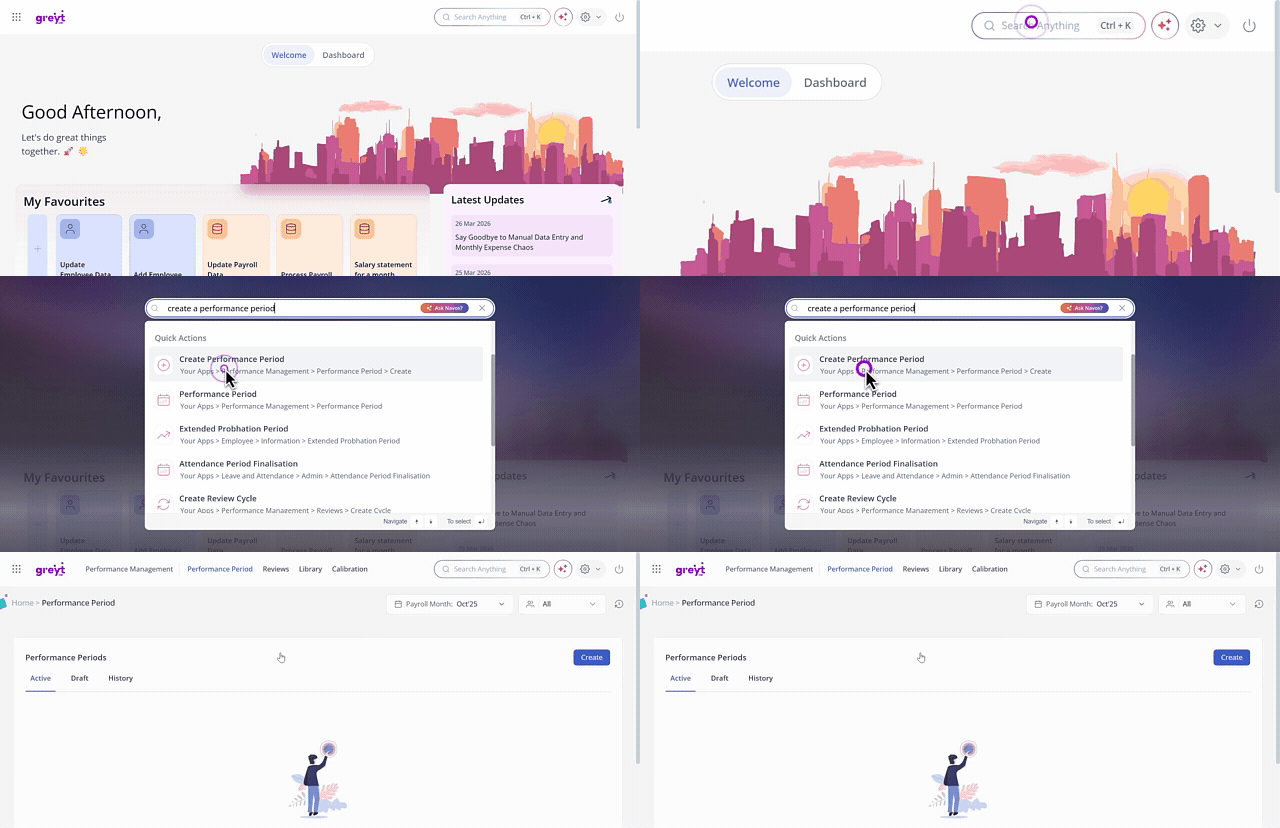
Click on the search bar and enter your query. For example, if you want to create a performance period, type “Create a performance period.” The system will display relevant results, and with a single click, you’ll be redirected to the exact page where you can complete the action.
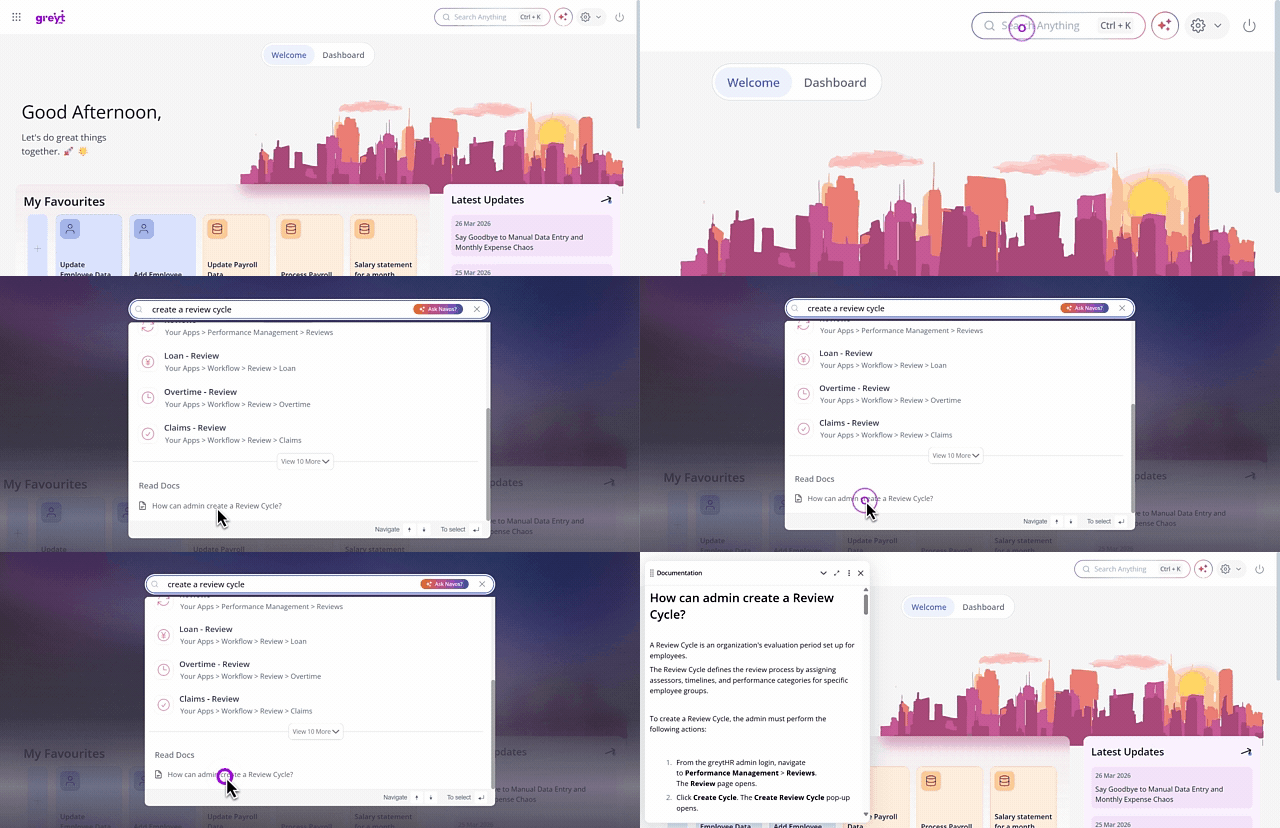
After typing your query, you can also view the detailed Knowledge Base article on the same page. Simply click on the document, and it will open instantly for you to read.
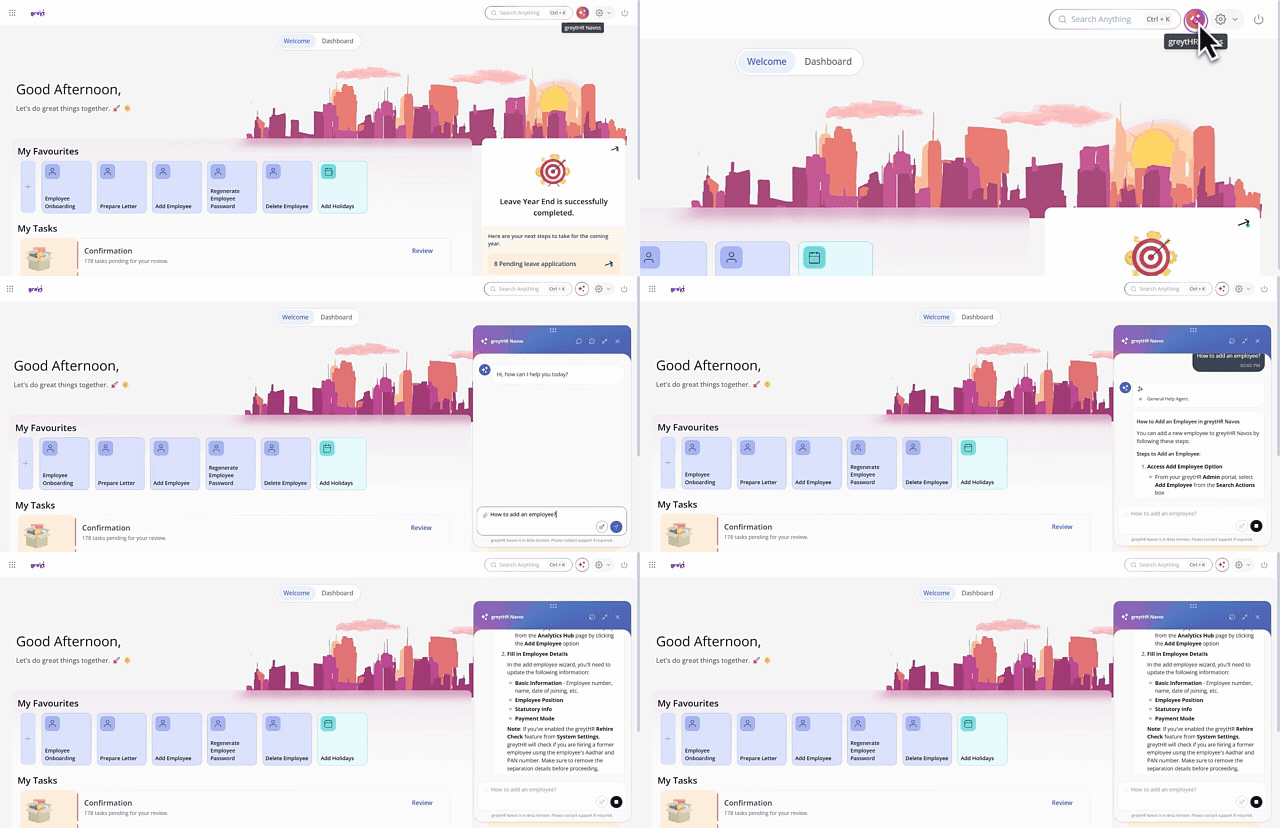
2. Click on the chat icon/widget and enter your query. For example, you might ask, “How to add a new employee?” The AI-enriched chatbot will then respond with a detailed step-by-step guide, share links to relevant knowledge base articles, or even navigate you directly to the relevant page.
Info:
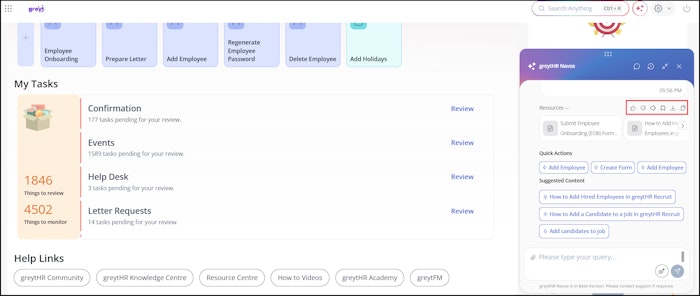
The Quick Actions option redirects you to the page where you can take the required action instantly.
You can view the detailed Knowledge Base article from the Suggested Content section.
You can provide feedback, use the Read Aloud option to listen to the chat content, and either download or copy the content as needed.
You can use voice-based search and interact in regional languages for a more personalized experience.


Raise a support ticket
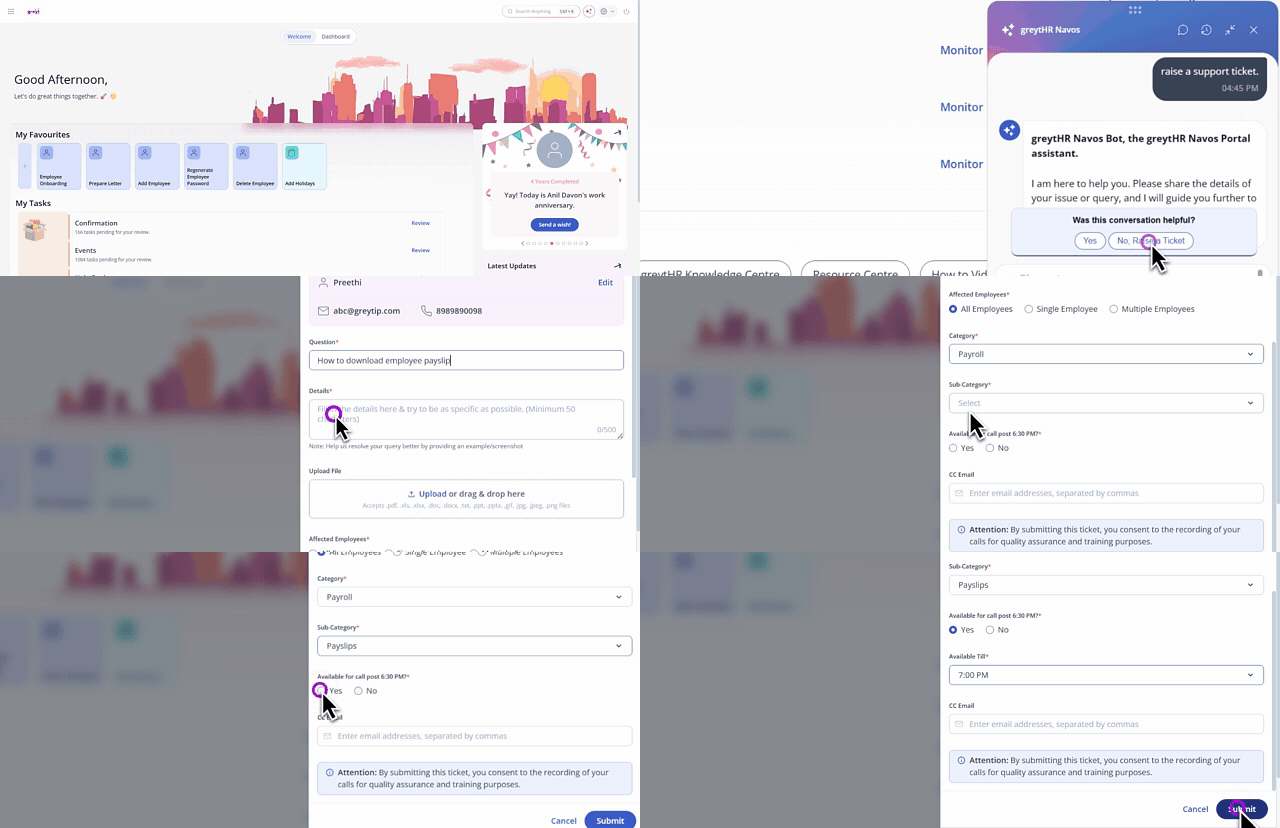
You can also raise a support ticket using greytHR NAVOS and get assistance or updates on your existing queries.
Click on the search bar and then type Raise a Support Ticket.
Select the Chat with Navos/Raise a Support Ticket option.
Once the chatbot appears, enter your query to find a resolution. If the response doesn't meet your needs, type that you want to raise a support ticket.
From the feedback pop-up, choose "No, Raise a Ticket" from the feedback popup.
If the user info is not filled, enter your name, email address, contact number, and preferred language and click Save.
To make any changed, click the Edit option, make the changes and save it.
In the Question text box, enter your query.
In the Details text box, mention any specific details about your query.
You can also upload any attachments as required.
Choose whether the issue affects all employees, a single employee, or multiple employees.
Select the required Category and Sub-category.
Indicate if you are available for a call after 6:30 PM by choosing Yes or No.
Optionally enter CC email addresses, separated by commas.
Click Submit to raise your request.
Related article: