Enable MFA for Secure greytHR Admin Access
Updated in July - 2025 | Subscribe to watch greytHR how-to video
As an admin, safeguarding your organization’s data and accounts is one of your most critical responsibilities. Relying on passwords alone is no longer enough — they can be guessed, stolen, or compromised in a breach.
With greytHR's Multi-Factor Authentication (MFA), you significantly reduce the risk of unauthorized access to sensitive information, even if a password is exposed. It helps protect not only individual accounts but also the integrity of your entire system.
Multi-Factor Authentication (MFA) is a security feature that requires you to verify your identity in more than one way before you can access an account or system.
Instead of just entering a password (something you know), you also have to provide:
Something you have, like a code sent to your phone or generated by an app.
Or something you are, like a fingerprint or face recognition.
For example, you log in with your password, then enter a one-time code from your phone. Only after both steps are completed can you access your account.
The Multi-Factor Authentication (MFA) can be enabled for admins using two channels – SMS and email. You can select both channels or either of them as per the requirements.
Once you enable Multi-Factor Authentication (MFA), you will receive a One-Time Password (OTP) on your chosen channel after entering your login credentials.
Enable Multi-Factor Authentication for admin
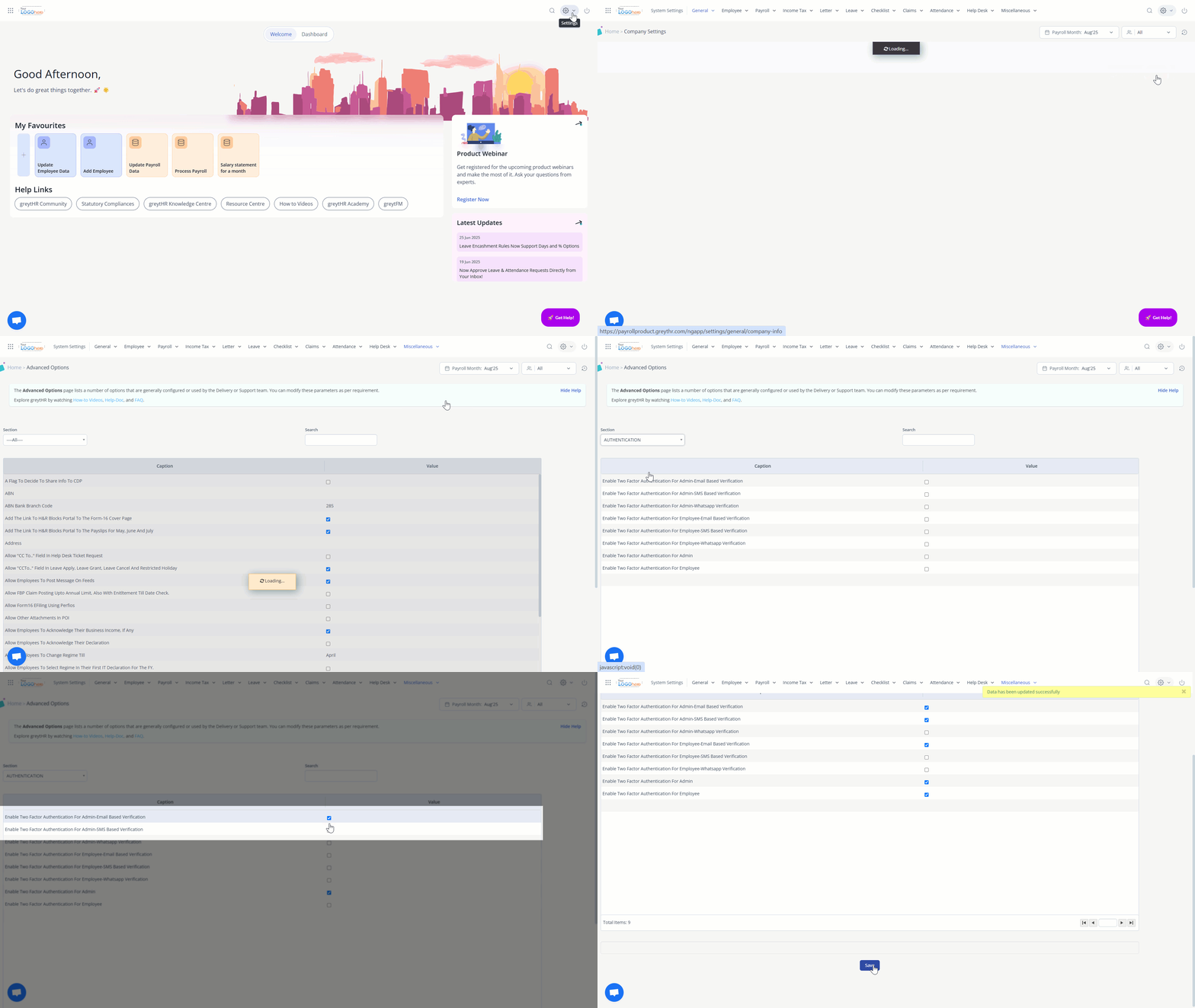
To enable the Multi-Factor Authentication (MFA), from your greytHR Admin portal, go to Settings > System Settings > Miscellaneous > Advanced Options.
Under the Section drop-down, enter Authentication.
To enable the Multi-Factor Authentication (MFA) for your admin account, select Enable Two Factor Authentication for Admin.
Select Enable Two Factor Authentication For Admin - Email Based Verification to receive the OTP via email.
Select Enable Two Factor Authentication For Admin - SMS Based Verification to receive the OTP via SMS.
Once done, click Save to apply the changes.
Note: If you have both Multi-Factor Authentication (MFA) and Open ID set up, the system will prioritize and use Open ID for logging in.
Log in to the greytHR using Multi-Factor Authentication
Once the Multi-Factor Authentication (MFA) feature is enabled, you can log in to greytHR using the login credentials and the One-Time Password (OTP) that you will receive on email or SMS.
Enter your Login ID, Password, and click Login.
Enter the 6-digit OTP.
Click Verify and log in to your account.
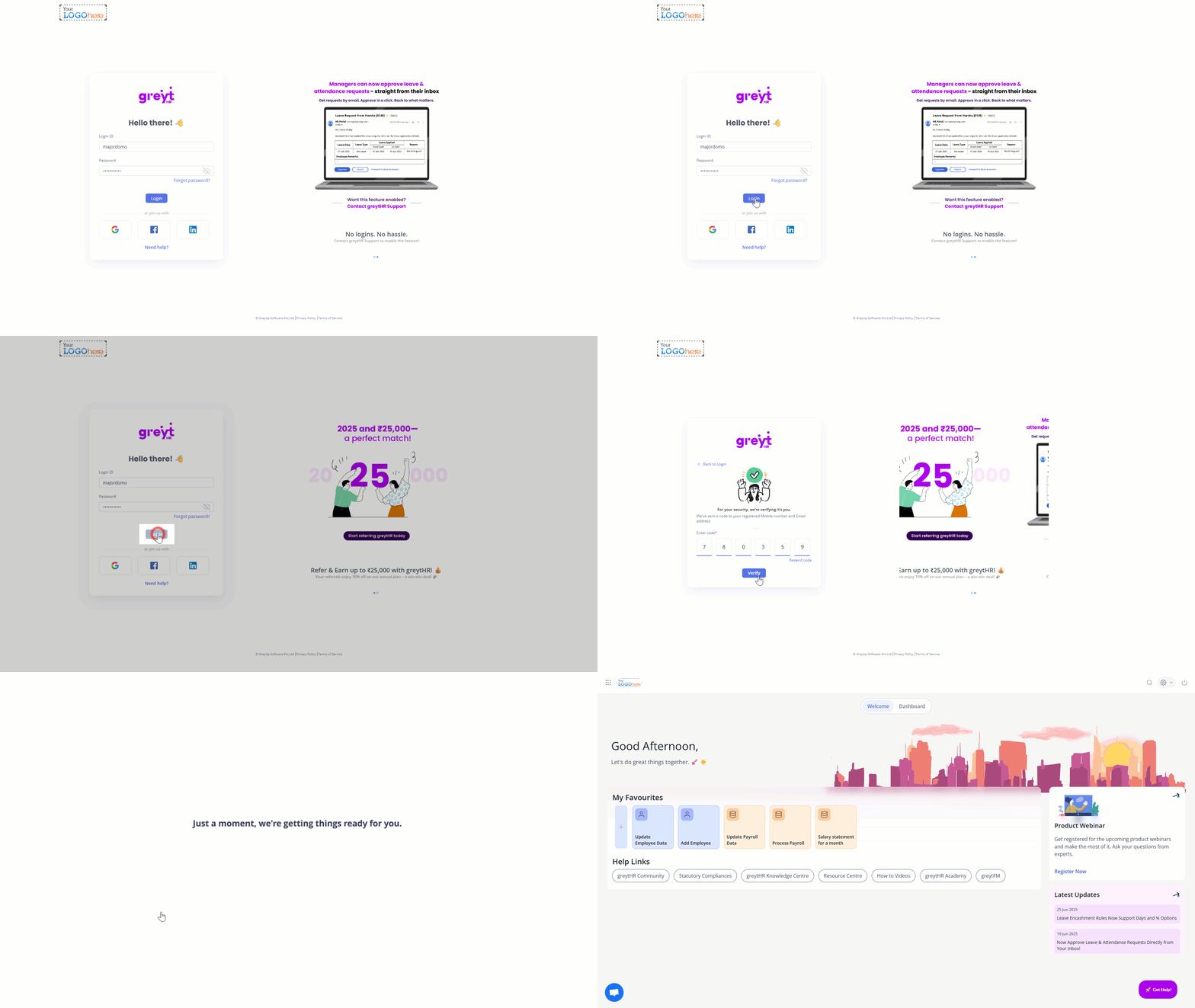
Note: If you have not received the code, click the Resend Code option.
Forgot Your Password? Here’s What to Do
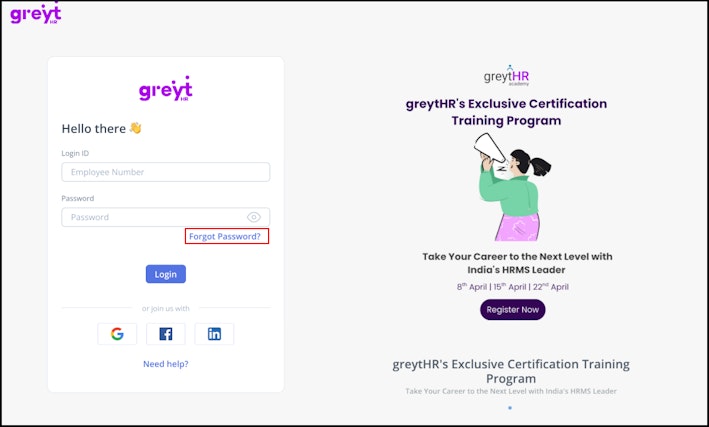
If you forget your password, simply click the Forgot Password? button located on the login page.
You will be prompted to enter your Login ID, and select Send Link.
You will receive an email with a link to create a new password. After setting the new password, you’ll be redirected to the login page.
Use your Login ID, new password, and complete authentication to access your account.


Related articles: