Manage Employee Passport & Visa Info in greytHR
Updated in February - 2026 | Subscribe to watch greytHR how-to video
The passport and visa details section is a feature that allows employers to provide information related to employees' passport and visa documents. It can include passport and visa numbers, issue and expiry dates, and other relevant details.
The purpose of the feature is to help employers maintain accurate records of their employees' passport and visa details, particularly for employees who are required to travel internationally as part of their job.
The Passport & Visa page in the greytHR Admin portal helps you to add or edit the passport and visa details of your employees their family members. The page also displays the passport number, validity period, and expiration status of an employee's or his/her family member's passport.
To view the Passport & Visa page, from the greytHR Admin portal, hover over the 9 dots and select Employee > Information > Passport & Visa.
You can perform the following details on the Passport & Visa page:
Add passport details.
Add visa details.
Add passport details
To add the passport details of an employee, from the greytHR Admin portal, hover over the 9 dots and select Employee > Information > Passport & Visa.
On the Passport & Visa page, from the Search Employee search box, enter the name or number of the employee for whom you want to add the information. The Passport and Visa cards appear.
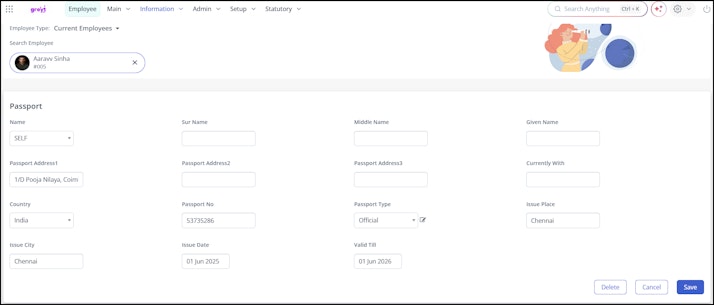
On the Passport card, click Add to add the passport details. A form appears.
From the Name dropdown list, select the required option.
In the Sur Name text box, enter the surname if applicable.
In the Middle Name text box, enter the middle name if applicable.
In the Given Name text box, enter the name given in the passport.
In the Passport Address1, Passport Address2, and Passport Address3 text boxes, enter the relevant addresses, if applicable.
Note: You can enter the latest present address in the respective text box as per your requirements.In the Currently With text box, enter the relevant information.
From the Country dropdown list, select India.
In the Passport No text box, enter the valid passport number.
From the Passport Type dropdown list, select the appropriate option.
Note: To add a new passport type, click the Edit icon next to the Passport Type dropdown list.In the Issue Place text box, enter the issued place of the passport.
In the Issue City text box, enter the issued city of the passport.
From the Issue Date dropdown calendar, select the issued date of the passport.
From the Valid Till dropdown calendar, select the expiry date of the passport.
Click Save to add the passport details. A success message appears.


Add visa details
To add the visa details of an employee, from the greytHR Admin portal, hover over the 9 dots and select Employee > Information > Passport & Visa.
On the Passport & Visa page, from the Search Employee search box, enter the name or number of the employee for whom you want to add the information. The Passport and Visa cards appear.
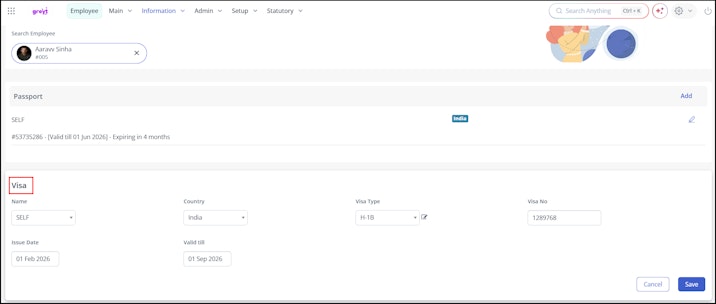
Click Add available on the Visa card to add the passport details. A form appears.
From the Name dropdown list, select the required option.
From the Country dropdown list, select India.
From the Visa Type dropdown list, select the appropriate option.
Note: To add a new visa type, click the Edit icon available next to the Visa Type dropdown list.In the Visa No text box, enter the valid visa number.
From the Issue Date dropdown calendar, select the issued date of the visa.
From the Valid Till dropdown calendar, select the expiry date of the visa.
Click Save to add the visa details. A success message appears.
Note: You can also edit the passport/visa details using the Edit icon available on the Passport/Visa cards.


Other related links: