Check Employee Sign-In Status and Attendance on greytHR
Updated in January - 2026 | Subscribe to watch greytHR how-to video
Monitoring employees' sign-in status is vital for ensuring punctuality and productivity. The Who Is In? page in the greytHR Admin portal displays detailed attendance information, including cards for Not Yet In, Late Arrivals, On Time, and Out of Office for regular and split shifts. The Out of Office section provides a consolidated view of employees who are not expected to report to work due to planned or configured non-working statuses such as leave, holidays, rest days, or off days.
Additionally, you can view average percentages for each status, as well as detailed attendance summaries based on various categories like department, location, job title, shift, and grade. It also allows downloading employee login-logout data for both regular and split shifts.
To view the Who Is In? page, from the greytHR Admin portal, hover over the 9 dots and go to Workforce Management > Attendance > Who Is In?.
You can perform the following actions on the Who Is In? page:
View employees' sign-in status with regular shift details.
View employees' sign-in status with split shift details.
Download employees’ sign-in and out of office reports.
View employees' sign-in status with regular shift details
To view the sign-in status of the employees with regular shift details, from the greytHR Admin portal, hover over the 9 dots and go to Workforce Management > Attendance > Who Is In?.
On the Who Is In? page, on the top left corner of the page, from the Date dropdown calendar, select the required date and year.
Click the arrow available in the Select Shifts box. The Shift pop-up appears.
Under the Regular tab, a list of split shifts appears.
Note: You can only select one type of shift at a time.
Select the shift(s) as per your requirements. Click Save. The Who Is In? page now displays the sign-in information of the employees assigned to the selected shift session-wise.
The session-wise information displays in the following cards:
The Not Yet In card displays information about the employees who still need to mark their attendance.
The Late Arrivals card displays the information regarding the employees who have not reached the organization at the expected time. It also displays the Sign In Time and Late By (HH: MM) time information.
The On Time card gives you the Sign In Time information and data about the employees who reached at the expected time.
The Out of Office card displays information about the employees who are on leave for the selected date.
Click the Download icon on any card to download the employees' sign-in status report.
On any employee’s card, click the V arrow to view the detailed swipe information as well as the Gap Hours.
View employees under Out of Office
The Out of Office card groups all absence-related statuses into separate tabs within the same section.
The following absence categories are available:
On Leave (default)
Holiday
Rest Day
Off Day
Each category displays the total number of employees under that status. The Out of Office summary count and percentage shown at the top includes employees from all categories combined.
Employee details shown under Out of Office
Collapsed view:
On Leave: Employee Name & Number, Type, Number of days, Status
Holiday: Employee Name & Number, Holiday Name
Rest Day: Employee Name & Number, Day
Off Day: Employee Name & Number, Day


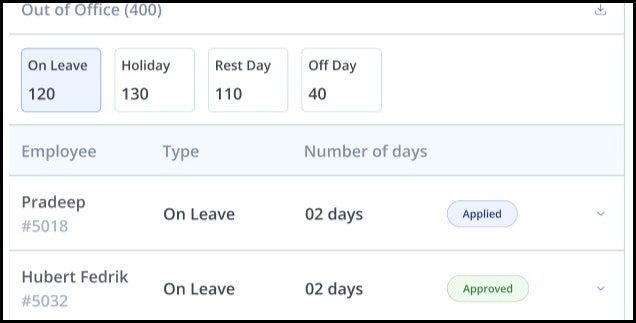
Expanded view:
Displays additional information such as shift name & time, contact details, and categories based on configuration and absence type.
View employees' sign-in status with split shift details
To view the employees’ sign-in status with split shift details, perform the following actions:
From the greytHR Admin portal, hover over the 9 dots and go to Workforce Management > Attendance > Who Is In?.
On the Who Is In? page, on the top left corner of the page, from the Date dropdown calendar, select the required date and year.
Click the arrow available in the Select Shifts box. The Shift pop-up appears.
Under the Split tab, a list of split shifts appears.
Note:
You can only view the Split tab if you have enabled the Split Shift option.
You can only select one type of shift at a time.
Select the shift(s) as per your requirements. Click Save. The Who is in page now displays the sign-in information of the employees assigned to the selected shift session-wise.
Select the Session 1/Session 2 option to view the session-wise details. The session-wise information displays in the following cards:
The Not Yet In card displays information about the employees who still need to mark their attendance.
The Late Arrivals card displays the information regarding the employees who have not reached the organization at the expected time. It also displays the Sign In Time and Late By (HH: MM) time information.
The On Time card gives you the Sign In Time information and data about the employees who reached at the expected time.
The Out of Office card displays information about the employees who are on leave for the selected date.
Click the Download icon on any card to download the employees' sign-in status report.
On any employee’s card, click the V arrow to view the detailed swipe information as well as the Gap Hours.
Download employees’ sign-in report
You can generate an Excel report for each tab individually.
On the Who Is In? page, select the required card.
Click the Export to Excel button under the selected tab to download the sign-in report. The report downloads in Excel format.
Note: When exporting from the Out of Office section, a single consolidated Excel file is generated containing employees from all absence categories. Each row includes the Status Type (On Leave, Holiday, Rest Day, Off Day). Columns that do not apply for a status remain blank.
Other related links: