Apply for Salary Revisions Easily in greytHR ESS Portal
Updated in October - 2025 | Subscribe to watch greytHR how-to video
The Salary Revision Workflow in greytHR empowers both managers and employees to initiate salary changes in a structured, transparent, and efficient manner. For managers, this means initiating salary revisions for your team members based on performance, market trends, or internal policies. For employees, this workflow allows you to submit a formal request for salary revision, giving you visibility into the entire process.
Initiate a salary revision request as an employee
As an employee, you can raise a request to revise your salary from the greytHR ESS portal.


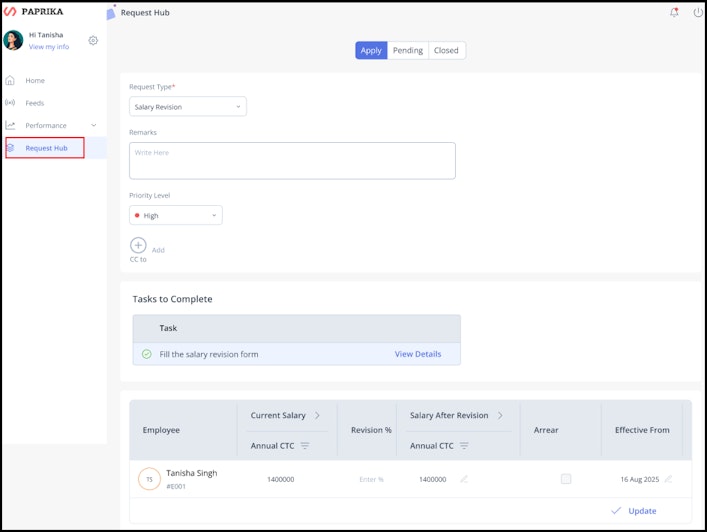
Go to Request Hub, select the Request Type as Salary Revision.
Add Remarks, set the Priority Level, and add a CC if you want to inform another employee about the request.
Complete the task, if any, fill out the form, Mark as completed, and save the changes.
In the salary components table, click on the arrow next to Salary After Revision to view the expanded salary components table in detail.
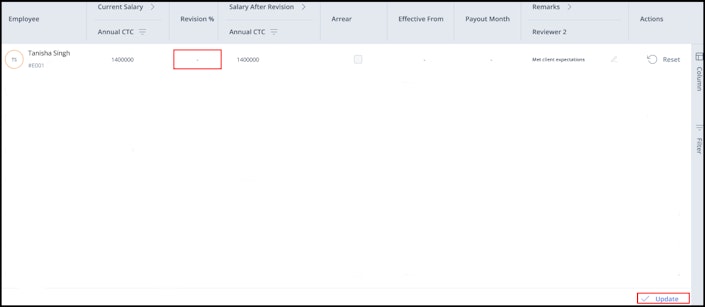
Enter the revised percentage in the Revision % column or enter the revised amount or percentage in the editable salary component’s fields.
Click Update, and the revised amount or percentage will reflect for the editable components in payroll under the Salary After Revision section.
You can edit the Arrears, Effective From, and Payout Month tabs based on the configuration.
Click Submit > Continue.


Note:
After submitting the request, it automatically moves to the Pending tab, where you can easily track its current status, view the timeline, and withdraw the request.
If the request is withdrawn, approved, or rejected, it moves to the Closed tab.
Initiate a salary revision request for an employee as a manager
As a manager, to raise a request for the team member(s), log in to the greytHR ESS portal and click Request Hub.
Select the Request type as Salary Revision and the name of the team member.
Note: To raise requests for multiple team members, you can select the team members from the Request For dropdown. The system raises separate requests for each selected team member.Add Remarks, and set the Priority Level.
Complete the task, if any, fill out the form, Mark as completed, and save the changes.
In the salary components table, click on the arrow next to Salary After Revision to view the expanded salary components table of all the team members in detail.
If your admin has not configured the policy for you to view the salary information, you will not be able to expand to view salary information. In such cases, enter the desired revision % against every employee and proceed forward.
Enter the revised percentage for each team member in the Revision % column or enter the revised amount or percentage in the editable salary component’s fields.
If an employee has a pending salary revision request, the system prevents duplicate requests.
You can edit the Arrears, Effective From, and Payout Month tabs based on the configuration.
Click Update, and the revised amount or percentage will reflect for the editable components in payroll under the Salary After Revision section.
Click Submit > Continue.
Review salary revision workflow
As a reviewer, to review the salary revision requests, go to To-do > Review > Request Hub.
Select the required team member’s request. You can also use the Select All checkbox to take bulk actions.
If you are the first reviewer, you can take actions such as Reject/Approve & Forward from here. Click View Details if you want to view the salary revision request in detail.
Complete the assigned task, if any, fill out the form, Mark as Completed, and click Save Changes.
Note: You can view the previous actions under the Timeline section.In the Payout Details section, choose the Effective From date, and Payout Month (if allowed). You can also select the Pay Arrear checkbox to add arrears if allowed.
In the salary components table, you can edit the salary component details as required and click Override.
Add Remarks if needed and select the available action: Approve / Reject /Approve&Forward.
Note: If you are the final reviewer, you will not have the option Approve&Forward.
Other related links: