Effortlessly File Taxes Using Taxspanner on greytHR ESS
Updated in April - 2025 | Subscribe to watch greytHR how-to video
Unite Marketplace on greytHR is a one-stop platform that connects employees with trusted third-party services to simplify HR, compliance, and financial processes.
Now, with the integration of Taxspanner with greytHR Unite, you as an employee can seamlessly access tax filing and planning services directly from yourgreytHR ESS portal
What is Taxspanner?
TaxSpanner is one of India’s largest tax filing and planning platforms, offering smart and hassle-free solutions for Income Tax Return (ITR) filing, TDS, GST compliance, and tax optimization. You can avail the advantages of this service without leaving the greytHR ecosystem.
Why use Taxspanner on greytHR ESS?
With one-click access, you can connect to TaxSpanner without multiple logins. File your taxes effortlessly with expert guidance, maximize savings using tax planning tools, and ensure accurate, error-free compliance with professional support.
Enable Taxspanner in the greytHR ESS portal
From your greytHR ESS portal, go to Unite Marketplace, click the TaxSpannner card > View Details.

Click the I Agree to the Terms of Service for this application checkbox and proceed further.
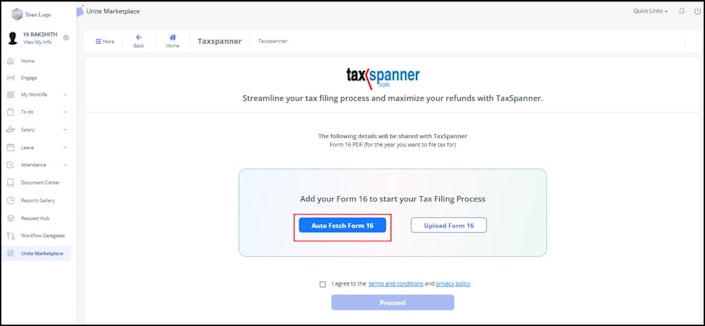
Note: After enabling, you will have an option to Auto Fetch Form 16 or Upload Form 16 manually.
Upload Form 16 manually from greytHR Unite Taxspanner
To upload Form 16 manually from the Taxspanner homepage click Open, select Upload Form 16, and proceed.
Click the Click here to login/Signup to continue button to proceed with e-filing.
Auto fetch Form 16 on greytHR Unite’s Taxspanner
From the Taxspanner homepage, click the Auto Fetch Form 16 button and verify the uploaded Form 16.


Note:
If you upload the correct Form-16 then Taxspanner pre-fills the details based on the uploaded Form-16.
If it is incorrect, then you will be prompted to either retry uploading the correct form or proceed manually.
Related Article: