Manage Your Leave Applications with greytHR Mobile App
Updated in September -2024 | Subscribe to watch greytHR how-to video
Applying for leave from a mobile application allows employees to easily request time off using their smartphones or tablets instead of using paper forms or email. They can choose the dates, type of leave and provide details, and the request is reviewed and processed by the company. It is a convenient way to apply for leave anytime and anywhere.
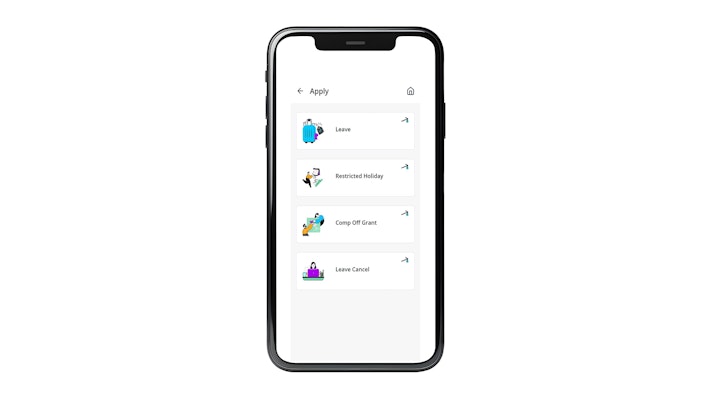
The Apply screen in the Leave module of the greytHR Mobile application helps you, as an employee to apply for leave such as General Leave, Restricted Holiday, or Comp Off Grant based on your company policies. You even have the Leave Cancel option to cancel your leave applications.


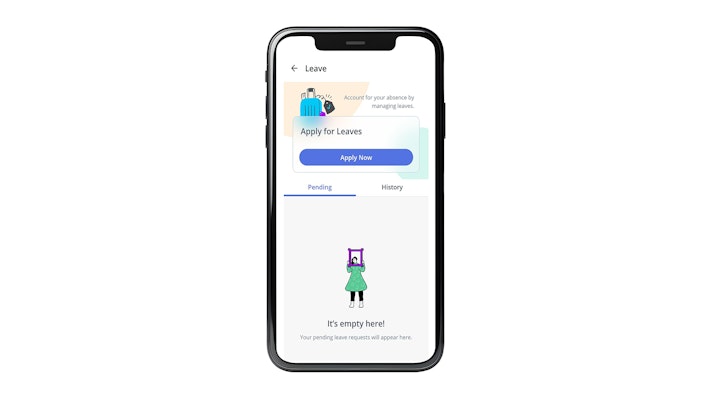
You can view the following tabs on each leave type screen:
Apply Now- The tab allows you to apply for a leave.
Pending - The tab lets you view all your pending leave applications.
History - The tab allows you to view all your approved, withdrawn, canceled, and rejected leave applications.
You can perform the following actions on the Apply screen:
Apply for general leave
Apply for restricted holiday (RH)
Apply for comp off grant
Apply for leave cancel
Withdraw leave application

Apply for general leave
General leave is a group of leave types your organization offers you to apply under various situations.
To apply for a general leave, perform the following actions:
From the greytHR Mobile application, navigate to Explore > Leave > Apply Leave. Alternatively, you can navigate to Action > Apply Leave.
On the Leave screen, on the Apply for Leaves card, tap Apply Now. The Apply screen appears.
From the Apply screen, select Leave. The Leave Type form appears.
Select the required type of general leave such as Annual Leave, Compensatory Off, Sick Leave, Bereavement Leave, and Maternity Leave. A form appears.
Note: If you select Maternity Leave, the To Date is auto-calculated as 182 days from the From Date — you don't need to manually enter it. Where your organization's policy allows for a year-split, the calculation is handled automatically.
Select the relevant From Date by tapping the Calendar icon to select the date range. A calendar appears.
Tap Select.
From Select From Session, select the required session.
Select the To Date by tapping the Calendar icon to select the date range. A calendar appears.
Tap Select.
From the Select To Session, select the required session. The selected date range is applied.
The Applying to field displays the immediate manager or reviewer of the leave application. You can also inform a team member by adding their name using the CC option.
In the Reason textbox, enter the reason, if any.
In the Attachment field, tap the + icon and attach a relevant file, if any.
In the Contact Details textbox, enter your contact information.
Tap Apply to submit your leave application.
Note: The application moves to the Pending stage until the respective manager or reviewer takes action.
Apply for restricted holiday (RH)
Restricted Holidays (RH) are optional holidays while your company has a routine working day. You can apply for an RH in advance.
To apply for a restricted holiday, perform the following actions:
From the greytHR Mobile application, navigate to Explore > Leave > Apply Leave. Alternatively, you can navigate to Action > Apply Leave.
On the Leave screen, on the Apply for Leaves card, tap Apply Now. The Apply screen appears.
On the Apply screen, select the Restricted Holiday card. The Holiday List screen appears.
Select the required restricted holiday. A form appears.
The Applying to field displays the immediate manager or reviewer of the leave application. You can also inform a team member by adding their name using the CC option.
In the Remarks textbox, enter the remarks, if any.
Tap Apply to submit your leave application.
Note: The application moves to the Pending stage until the respective manager or reviewer takes action.
Apply for comp off grant
Compensatory off or Comp off grant is the additional leave type an employer provides you to compensate for working overtime on weekdays or holidays.
To apply for comp off grant, perform the following actions:
From the greytHR Mobile application, navigate to Explore > Leave > Apply Leave. Alternatively, you can navigate to Action > Apply Leave.
On the Leave screen, on the Apply for Leaves card, tap Apply Now. The Apply screen appears.
On the Apply screen, select the Comp Off Grant card.
From the Leave Type dropdown list, tap Compensatory Off and Confirm. A form appears.
From Select From Session, select the required session.
Select the To Date by tapping the Calendar icon to select the date range. A calendar appears.
Tap Select.
From the Select To Session, select the required session. The selected date range is applied.
In the Number of Days textbox, enter the number of days.
The Applying to field displays the immediate manager or reviewer of the leave application. You can also inform a team member by adding their name using the Add CC option.
In the Reason textbox, enter the reason, if any.
Tap Apply to submit your leave application.
Note: The application moves to the Pending stage until the respective manager or reviewer takes action.
Apply for leave cancel
The Leave Cancel option in the Apply screen enables you to cancel your leave applications.
To cancel a leave application, perform the following actions:
From the greytHR Mobile application, navigate to Explore > Leave > Apply Leave. Alternatively, you can navigate to Action > Apply Leave.
On the Leave screen, on the Apply for Leaves card, tap Apply Now. The Apply screen appears.
On the Apply screen, tap the Leave Cancel card. A list of your leave applications appears.
Select the required leave that you want to cancel and tap the ↗ icon available on the leave application. The Leave Cancel screen appears.
The Applying To field displays the immediate manager or reviewer of the leave application. You can also inform a team member by adding their name using the Add CC option.
In the Cancel Reason textbox, enter the leave canceling reason, if any.
Tap Cancel Leave to cancel your leave application.
Withdraw leave application
To withdraw a general leave application, perform the following actions:
From the greytHR Mobile application, navigate to Explore > Leave > Apply Leave. Alternatively, you can navigate to Action > Apply Leave.
On the Leave screen, on the Apply for Leaves card, tap Apply Now. The Apply screen appears.
On the Leave screen, tap the the Pending tab. A list of pending leave applications appears.
Tap the Withdraw button on the required leave application card. The Withdraw request pop-up appears.
Tap Confirm to withdraw your leave application.
Other related links: