Apply, Withdraw, and Track Resignation in greytHR App
Updated in September- 2024 | Subscribe to watch greytHR how-to video
When an employee decides to leave an organization, submitting a resignation is important. It helps both the employee and employer manage the exit smoothly. This process ensures clarity, respect, and proper handling of all formalities.
Resignation is a formal process where employees voluntarily inform their manager of their intention to leave the organization.
The Resignation screen in the greytHR Mobile application allows you as an employee to easily apply, withdraw, and track your resignation application. You can also view the following tabs on the screen:
Pending - This tab displays the resignation application you have raised and is pending for the reviewer’s actions.
History - This tab displays the revoked, accepted, or withdrawn resignation applications.


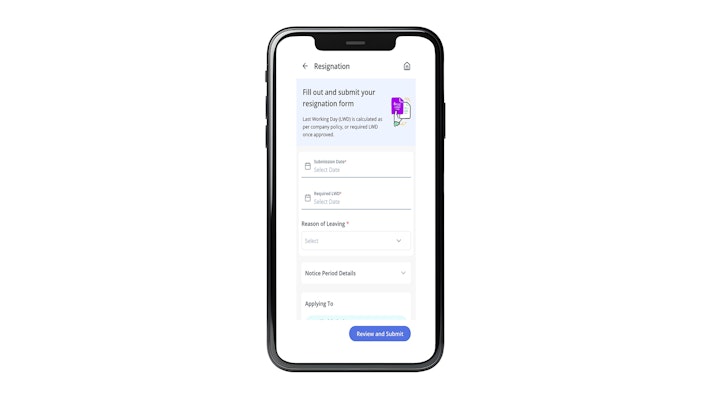
You can perform the following actions on the Resignation screen:
Apply for resignation
Withdraw resignation
View resignation history
Apply for resignation
To apply for resignation, perform the following actions:
On the top right corner of the greytHR Mobile application Home screen, tap your Profile picture or Name initials. A sidebar opens.
Tap My Profile. Your profile information displays.
Scroll down and tap Resign. The Resignation screen appears.
Tap Apply Now to apply for resignation. The resignation form screen appears.
Tap the Submission Date dropdown calendar to select the submission date of resignation.
Tap the Required LWD dropdown calendar to select the required last working date.
Tap the Reason of Leaving dropdown list to select the reason for your resignation.
Note:Your reporting manager will automatically be displayed in the Applying to search box.
After you select Submission Date and Required LWD, you can view the notice period days, LWD as per Policy, and Shortfall days auto-populate in the Notice Period Details dropdown.
The Tentative LWD displays the provisional last working date as per the company's notice period policy.
The Shortfall Days display the number of shortfall days as per the company's notice period policy.
In the Alternate Email ID text box, enter your alternate email ID.
In the Alternate Mobile Number text box, enter your alternate mobile number.
In the Remarks text box, enter the remarks, if any.
Tap Attachment to attach any resignation-related documents or images. Browse and attach the required files.
Note: You can attach only a maximum of 10 documents.Tap Review and Submit. A confirmation pop-up appears displaying the notice period details.
Tap Confirm to submit your resignation application. A success message appears.
Note:
You can view the applied resignation request under the Pending tab.
Tap ↗ to view the submission details and status of the resignation request.
Tap View Timeline to add a comment to your manager and also view the timeline.
Withdraw resignation
To withdraw your resignation application, perform the following actions:
On the top right corner of the greytHR Mobile application Home screen, tap your Profile picture or Name initials. A sidebar opens.
Tap My Profile. Your profile information displays.
Scroll down and tap Resignation. The Resignation screen appears.
Under the Pending tab, tap Withdraw. The Withdraw Resignation pop-up appears.
In the Reason of withdrawal textbox, add the reason for withdrawing the resignation.
Tap Confirm to submit your withdrawal request. A success message appears.
Note: You can withdraw your resignation application before your manager accepts it. In case your manager accepts your resignation, then you cannot withdraw it and you must contact your HR admin.
View resignation history
To view your resignation application history, perform the following actions:
On the top right corner of the greytHR Mobile application Home screen, tap your Profile picture or Name initials. A sidebar opens.
Tap My Profile. Your profile information displays.
Scroll down and tap Resign. The Resignation screen appears.
Tap the History tab. The screen displays the past resignation applications that were Withdrawn or Revoked.
Tap ↗ on the resignation application card to view the details of the resignation request and also the timeline.
Other related links: