Submit Your Expense Request on the greytHR Mobile App
Updated in July - 2026 | Subscribe to watch greytHR how-to video
As an employee, when you spend money for any work-related reason, like travel, supplies, or client meetings, you can raise an expense request to get that amount reimbursed. These expenses aren’t added to your salary. Instead, your organization pays them separately, through cash, cheque, or a bank transfer, depending on the company's policies.
greytHR makes it easy and convenient for you to raise requests for work-related expenses and track the process directly from the greytHR Mobile App.
Create an expense request
To create an expense request, log in to your greytHR Mobile application, tap on the Explore option, and select Expense.
On the Expenses screen, tap on the Add Expenses option to upload the relevant bills.


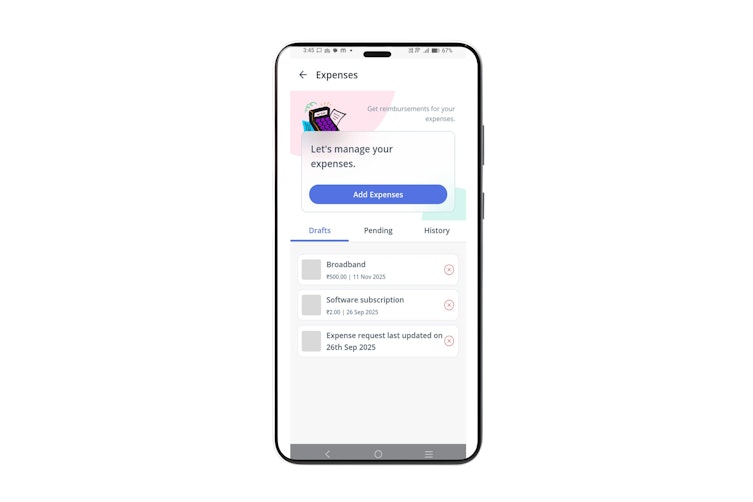
You can upload the bills by clicking on Camera, File, Gallery, or Proceed without Bill options.
If you want to apply for an expense request without the bill, select Proceed without bill, add details, and click Proceed.
Note: Once you take a picture of any bill, the OCR feature in the greytHR mobile app, automatically scans the image, detects the details, and fills in the required information in the claim form for you. You can then review and make any changes before submitting. This feature is enabled based on the admin configuration.
After uploading, tap the Proceed button. The form appears.

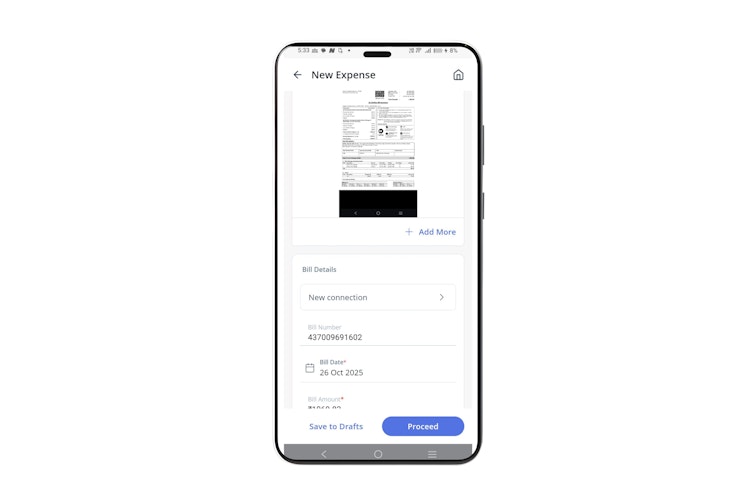
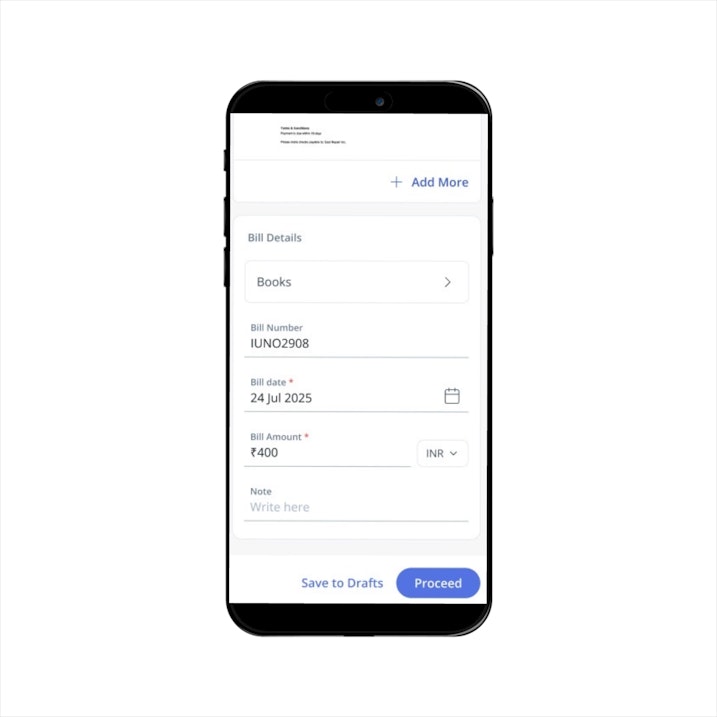
Under the Bill Details section, select the Expense Type and choose the required information as per the selected expense type.
If the OCR feature is not working, you need to manually enter the Bill Number, Bill Date and Bill Amount.
The currency is displayed as per the policy configuration. If it is an amount based expense, the currencies configured in the policy are displayed.
If it is mileage based expense, then the currency configured in the mileage is displayed.


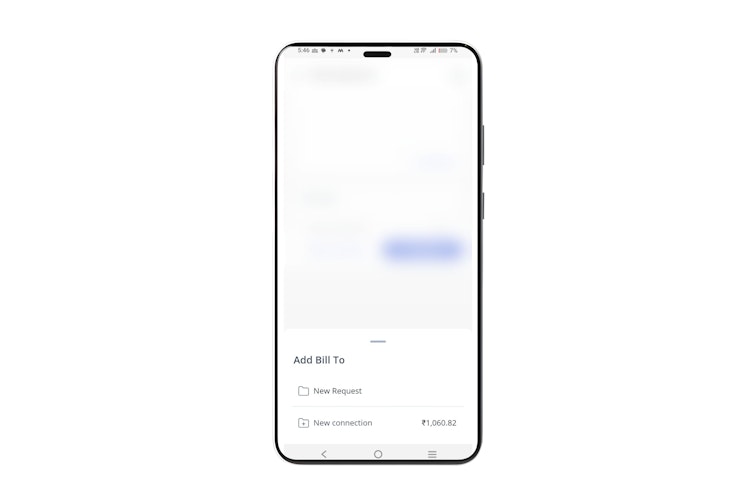
Click Proceed, and under Add Bill To section, you can click the New Request option to add it as a new expense request or map it with the existing drafts.
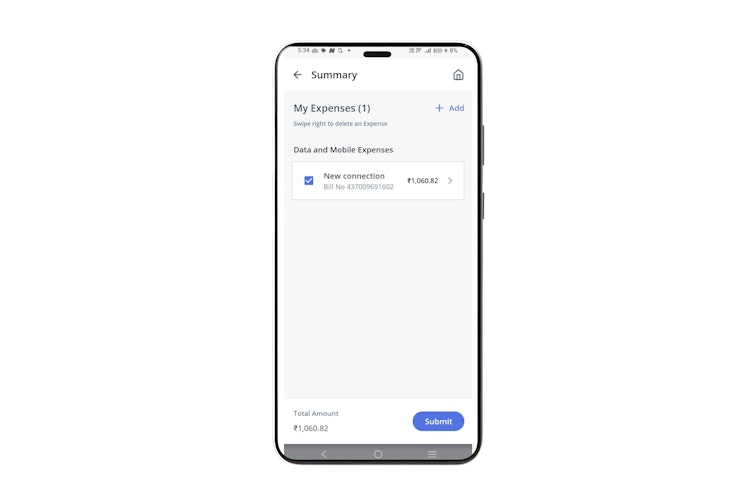
If you add the bill to an existing expense request, click on the required request, and the Summary page will appear, where you can view all the expense requests that you have added under each expense category.
If you add it as a new request, a new Summary page will appear with all the details.
On the Summary page, you can add more attachments for different expense categories by tapping on the + Add button.
If you want to delete an expense, select the required checkbox against the expense and swipe right.
Tap on Submit to create the request.
Note:
While adding the attachment, you need to upload the relevant information. After uploading them, if you wish to save the expense request-related information and submit it later, tap on the Save to Drafts button.
You can view the attachments saved in drafts under the Drafts tab. You can also delete it as per your requirements. If you wish to submit an expense request, just click on the relevant attachment and on the apply form, fill in all the required details.
Under the Pending tab, you can view all the requests that are pending for review. You can withdraw any request, too.
Under the History tab, you can view all the requests that have been approved or rejected.
Related Article: