Review Expenses Easily on the greytHR Mobile App
Updated in September - 2026 | Subscribe to watch greytHR how-to video
After an employee submits an expense request, as a manager, you need to ensure that the request submitted by the employee is accurate, valid, and in line with company policies.
Using the greytHR Mobile App, you can quickly review each request, verify the details and attachments, and take appropriate action either by approving, rejecting, or overriding it. You can also forward it to the next reviewer based on the admin configuration.
This streamlined process helps maintain transparency, speeds up reimbursements, and ensures accountability in managing company expenses.
Review an expense request
To review an expense request, log in to your greytHR Mobile application, tap on the Explore option, and select To Do > Expense. Alternatively, you can tap on the Expense card under the Review section on the home screen.
On the Expenses screen, under the Active tab, you can view all the requests pending for review.
If a request is part of a trip, the Trip ID and Trip Name appear alongside it in the list.


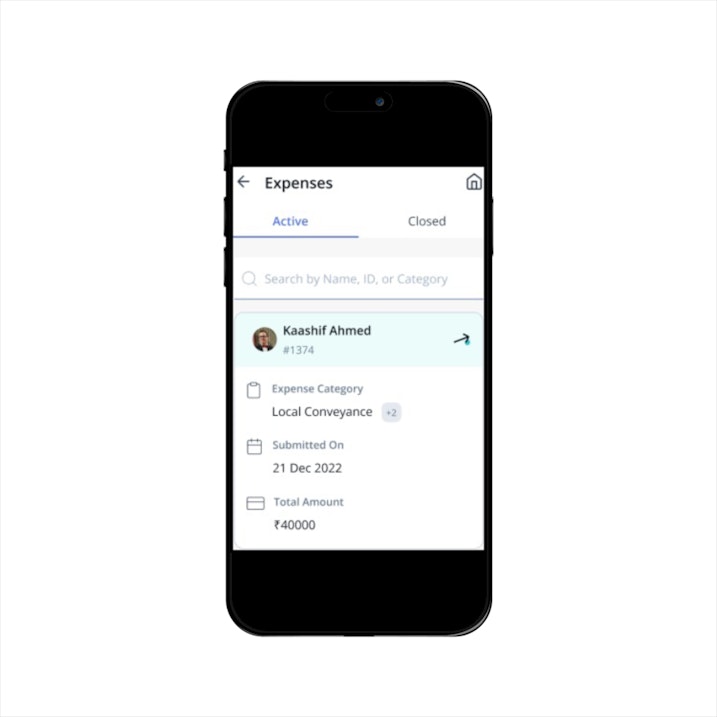
Click on the ↗️icon to view the expense details.
On the Expense Details screen, you can see the details such as Expense Category, submission date, and amount.
Tap the trip name to view the Trip Summary, which shows the Trip ID, Trip Name, Duration, and Description, along with a list of all requests submitted under that trip, grouped by bill date, with their amount and status.
You can tap on View Timeline to check the timeline of the overall request.
Under the Expenses section, you can expand each collapsible drop-down to view the necessary details for the expense type.
You can tap on the Accept/Reject button.
Note: If you choose to override the amount, then tap the Override option, enter the amount and remarks, and save the changes.Finally, tap on the Submit option to complete the review process for the expense request.
Note: If the request has to be forwarded, then tap on the Forward option.
Info: Once the HR admin begins processing and paying expenses, the expense batch is locked to prevent further changes. As a reviewer, you won’t be able to view or take any action on the expense that is locked. If you need access or have questions, you need to contact your HR admin.
Related Article: