Track Your Work Time with greytHR's Elapsed Timer
Updated in December-2025 | Subscribe to watch greytHR how-to video
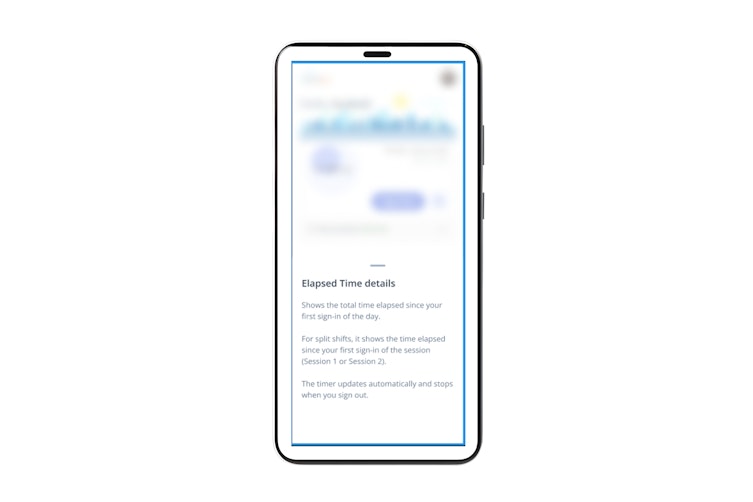
Tracking your daily working hours is now easier with the Elapsed Timer feature on the greytHR mobile app. This timer displays the total time that has passed since your first sign-in of the day, helping you stay aware of how much time has passed since starting your workday without any manual effort.
The timer updates in real time and starts from the earliest available IN timestamp recorded across all platforms—mobile, web, kiosk, or biometric. It ensures transparency, enhances self-awareness, and helps employees manage their workday effectively.
Key highlights of the Elapsed Timer
Shows real-time time since the first sign-in of the day.
The timer automatically stops at sign-out and restarts on the next sign-in in case of multiple Sign-In/Out.
Displays time in HH:MM format for easy understanding.
Fully backend-synced to ensure accurate time tracking even after app restart or network issues.
Applies to all attendance setups, auto shift, multiple or split shift, cross midnight shifts, shift change mid-day, weekends/ holiday.
Visibility only — no alerts or shift validation messages are triggered.


View your elapsed time
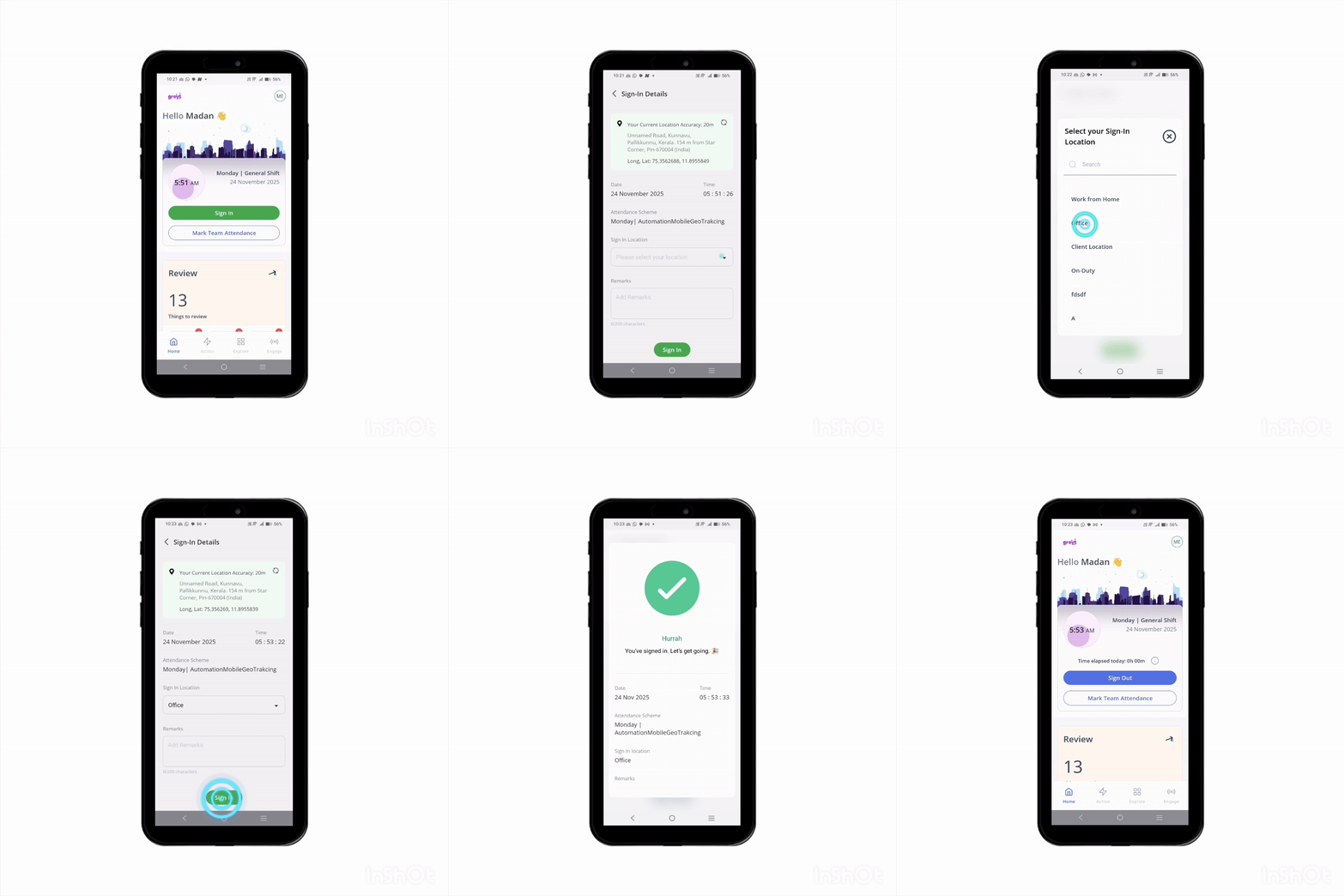
Log in to the greytHR mobile app
Tap Sign In.
Once the sign-in is successful, the Elapsed Timer will automatically show on the home screen on the widget.
Note: If you sign in again on the same day, the timer resumes from the first sign-in time, not the most recent one.
Additional information
Multiple platforms: If you sign in using biometric, mobile, or web, the timer starts from the earliest valid IN punch.
Auto-shift users: The timer begins from the IN time based on the auto-detected shift.
Devices without IN/OUT indicators: The app only uses valid IN swipes. If the first swipe is an OUT, the timer will not start.
Offline mode: If the network is lost, the timer may show cached data and will correct itself after reconnection.
Split shifts:The timer resets for each shift session and runs independently.
Example: If an employee works a split shift from 9:00 AM–1:00 PM and then 3:00 PM–7:00 PM, the timer will show elapsed time only for the current session. It will reset at 3:00 PM when the second shift starts.Cross-midnight shifts:The timer continues smoothly past midnight until the shift ends.
Example: If a shift starts at 8:00 PM and ends at 4:00 AM, the elapsed timer will keep running past 12:00 AM without resetting, showing the total time from 8:00 PM onwards.Missed sign-out: If the previous day’s sign-out is missing, the system auto-closes it, and the timer starts fresh the next day.
Configuration disabled by admin: If the admin turns off the feature, the timer hides on the next refresh.
App restart/reinstallation: The timer always resumes correctly using backend data.
Related Article: