Use greytHR App to Mark Attendance with a Live Selfie
Updated in September - 2025 | Subscribe to watch greytHR how-to video
Marking attendance through the greytHR mobile application is now simpler and more secure with selfie recognition. Employees can easily record their attendance by taking a live selfie, eliminating the need for physical devices or manual inputs. However, misuse through printed photos, pre-recorded videos, or digital selfies on screens has raised concerns about fraudulent entries.
To address this, greytHR has enhanced its selfie-based attendance system with advanced liveness detection. This ensures that only a live human face is recognized before attendance is marked, effectively blocking spoofing attempts and making the process more secure, reliable, and tamper-proof.
Key highlights of enhanced selfie recognition
Validates live facial movements like blinking or head tilt.
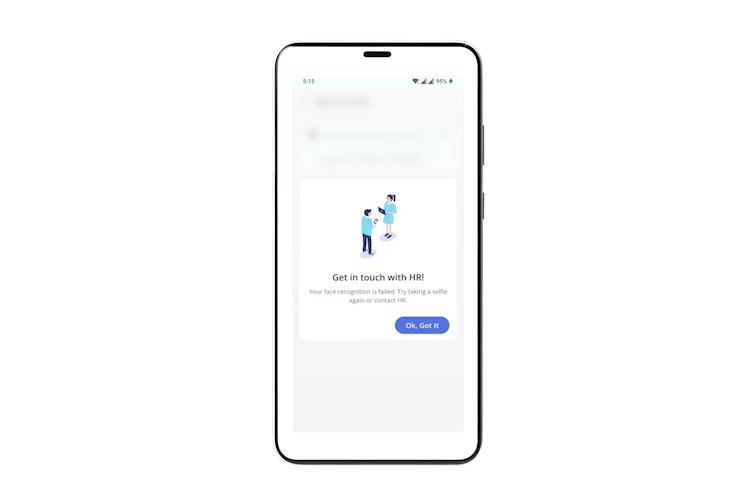
Blocks spoofing attempts using printed photos, pre-recorded videos, or digital screens with a pop-up message notifying the user .
Works on all versions of Android (8.1 and above) and iOS (16.0 and above).
Both require liveness validation before attendance is marked.
Integrated seamlessly into the greytHR attendance module — employees follow the same familiar flow.
Mark attendance with selfie recognition
Log in to the greytHR mobile application and tap Sign In (or Sign Out).


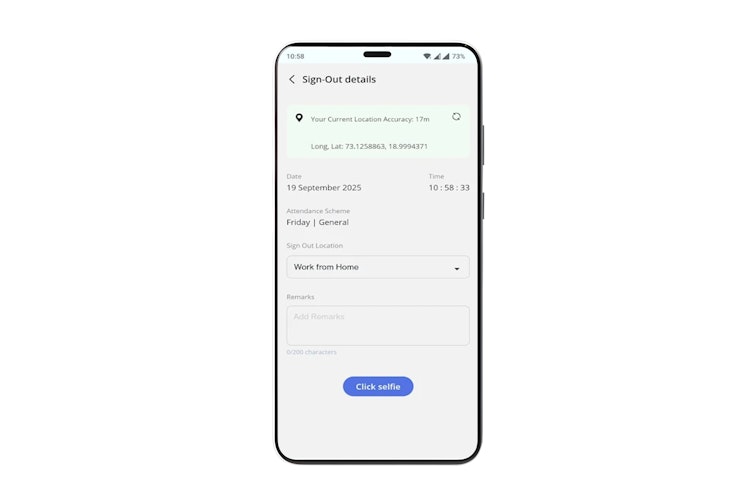
From the Sign-In Location dropdown, select the required option. The app activates the front camera for a selfie capture automatically.

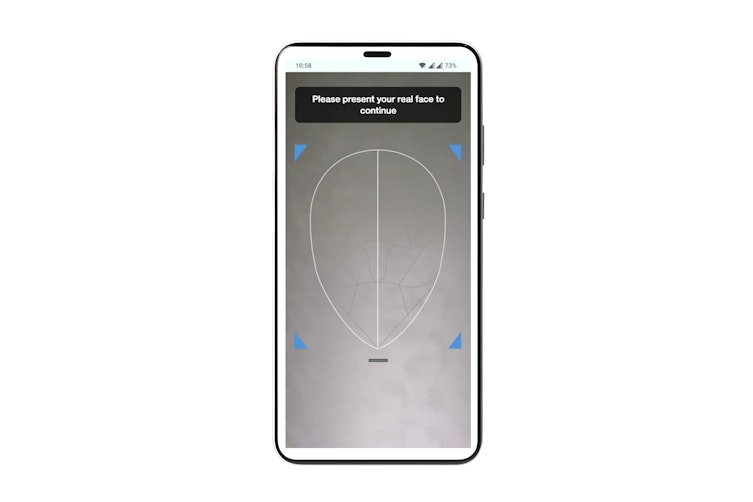
Position your face clearly within the frame and tap Click Selfie.
The system then validates the selfie captured by matching it with the employee’s photo stored in the greytHR database and performing liveness detection to confirm the presence of a real person.
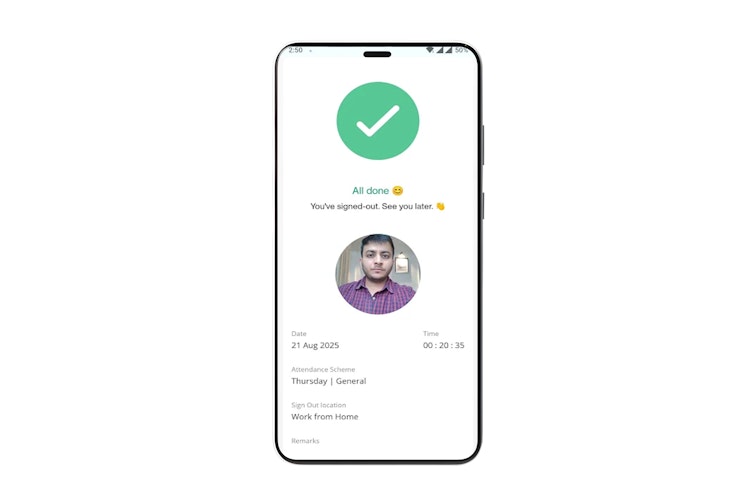
If successful, the attendance is recorded.

If the validation fails, an error message appears:“Your face recognition is failed. Try taking a selfie again or contact HR.”

Additional information
Attendance marking will fail if your face is partially hidden by masks, scarves, or hands, or if you attempt to use face cut-outs or other screen-based tricks.
In some cases, the system may ask you to try again. This can happen if the lighting is too poor or overly bright, if multiple faces are captured in the frame, or if your face is too close or too far from the camera.
Network issues during capture may also result in a retry prompt.
Related Articles: