Mark Attendance with greytHR: Facial Recognition & More
Updated in March- 2025 | Subscribe to watch greytHR how-to video
Managers may need to mark a team member’s attendance in situations where employees face emergencies, technical glitches, or biometric authentication failures.
The greytHR mobile application allows managers to mark attendance for their team members using different methods such as facial recognition, selfies, geo-tracking, geo-fencing, or manual sign-in. This ensures quick and secure verification while reducing errors and minimizing manual follow-ups.
Register facial recognition and mark team member’s attendance
As a manager, you can use this feature if the team members' facial recognition is registered; if not, upload their images to complete the registration first.
Just tap Mark Team Attendance on the Home screen to get started. 📲
On the Search a Teammate screen, you’ll find three tabs:
Pending – For team members who need to sign in.
Signed In – For those who need to sign out.
Signed Out – No action needed.


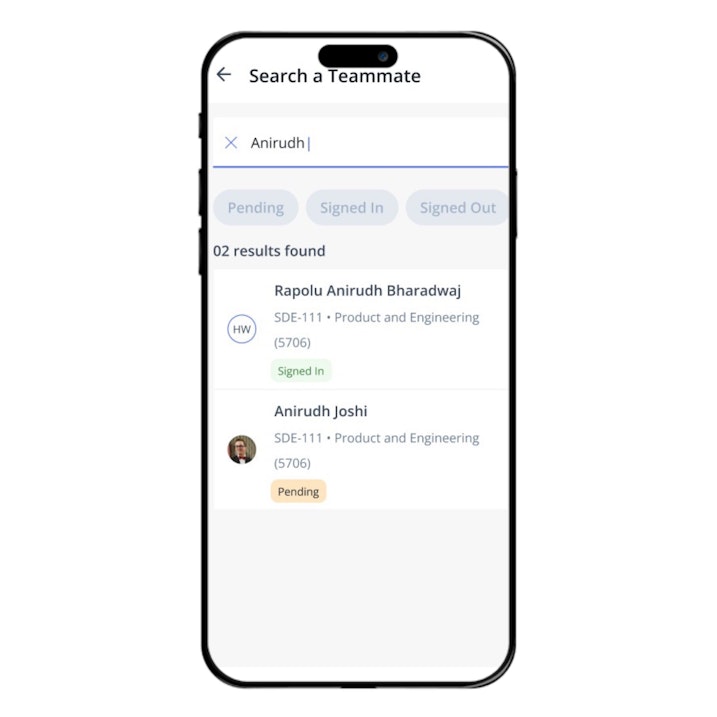
Search for the team member using their Name or ID, select them, and choose the required action.

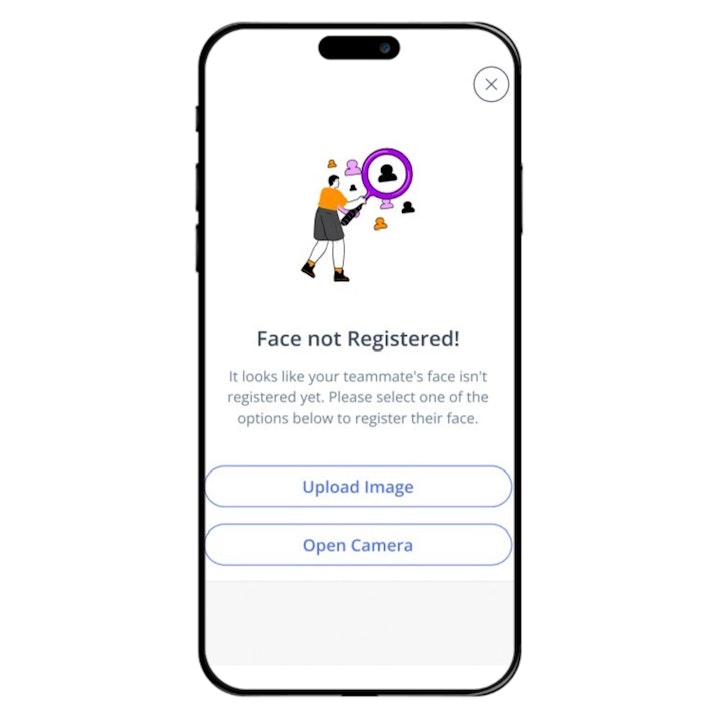
If facial recognition is not registered, tap Upload Image/Open Camera, select a saved photo from your mobile, or take a new one. Once uploaded, tap Next to continue.
Now, choose the Sign-in/Sign-out Location Type and add any remarks if needed.

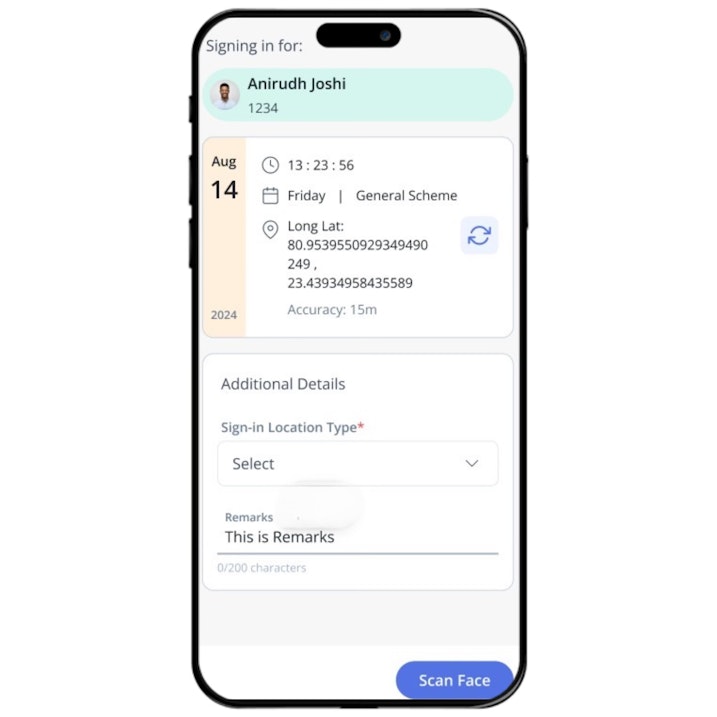
Tap Scan Face to complete the process. If it fails due to facial recognition or geo-location issues, retry with accurate details.
📌If facial recognition is already registered, simply select the team member and scan their face to mark attendance.
Need to mark attendance using a selfie? Follow the same process up to selecting Sign In or Sign Out. Then, tap Take a Photo > Next to complete the process.
To ensure team members are within designated work locations, you can use geo-fencing and geo-tracking to mark attendance.
Mark attendance using geo-fencing and geo-tracking
Follow the same process up to selecting an employee for Sign In or Sign Out.

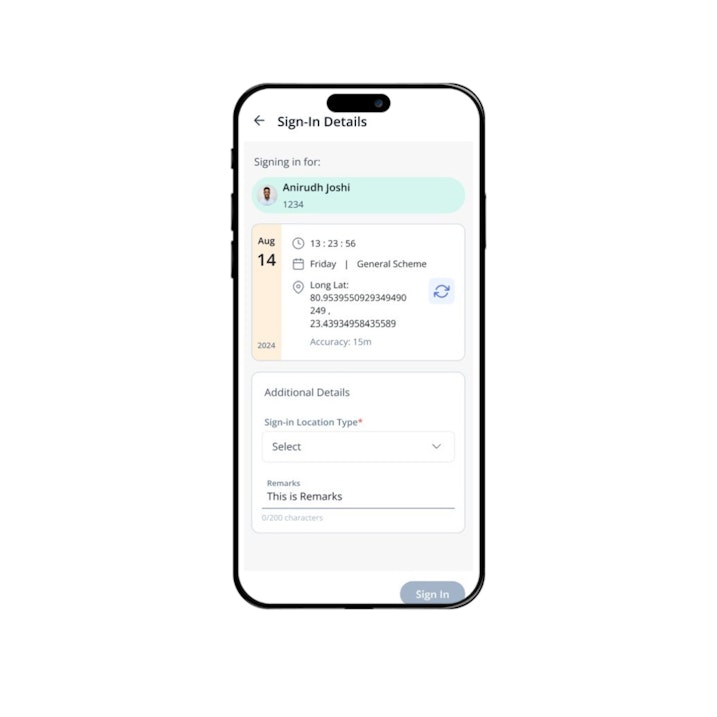
Choose the Sign-in/Sign-out Location Type, and add any remarks if needed to mark the attendance.
That’s it! Attendance marking is now simpler and more efficient. 🚀
Other related links: