Mark Attendance Accurately with greytHR GPS Live Tracking
Updated in September - 2026 | Subscribe to watch greytHR how-to video
GPS Live Tracking in greytHR allows employees working in the field to mark attendance and record their movement, client visits, and travel between sign in and sign out.This feature ensures accurate attendance capture, clear timelines, and better transparency for both employees and managers.
GPS tracking works automatically once it is enabled in the attendance scheme and starts when you, as an employee, sign in, without requiring any manual tracking actions beyond attendance activities.
Setting up location permissions
To ensure GPS Live Tracking captures your location accurately, configure the following permissions on your mobile device before signing in.
For Android users
Open the greytHR mobile app. When prompted, grant permission for Physical activity.
When prompted, grant permission for Phone (call management).
Go to your device Settings > Apps > greytHR and disable Remove permissions if app isn't used.
In the same settings screen, set Location permission to Allow all the time.
Enable Use precise location.
For iOS users
Open the greytHR mobile app and log in.
When prompted, select Allow While Using App for Location Services.
To enable background location tracking:
When prompted to allow greytHR to use your location even when you are not using the app, tap Change to Always Allow.
Alternatively, go to iOS Settings > Privacy & Security > Location Services > greytHR and change the location permission to Always. This allows the app to continue tracking your location in the background.
On the same screen, enable Precise Location so the app can capture your exact location instead of an approximate location.
When prompted, grant permission for Motion & Fitness. This is the iOS equivalent of the Physical Activity permission on Android.
Sign In with GPS Live Tracking
When you sign in from the greytHR mobile app to mark attendance, GPS Live Tracking is already active based on the selected attendance scheme.
Open the greytHR mobile app and tap Sign In.
When prompted, allow location permission. Location access is mandatory for GPS Live Tracking.
After permission is granted, the app captures:
Latitude
Longitude
Location accuracy (This can vary based on GPS signal and location.)
The Sign In button remains disabled until a valid location and acceptable accuracy are captured.
Once valid GPS data is available, tap Sign In to confirm attendance.
After a successful sign-in:
You are automatically redirected to the home page.
A message indicates that GPS Tracking is ON.
A View My Tracking call-to-action (CTA) is displayed.
Accessing My Tracking
You can access your tracking timelines in the following ways from your greytHR Mobile app.
Tap View My Tracking on the home screen. (This is visible only after you sign in for the day and hides once you sign out) or
Tap Explore > Attendance > My Tracking
Note:
My Tracking under Attendance is always available in the mobile app and can be accessed at any time.
View My Tracking on the home screen is visible only during the active workday—from sign-in until sign-out.
My Tracking details screen
When you tap View My Tracking, you are taken to the My Tracking Details screen. This section displays a map view, a graphical view of your movement for the day, and Timeline Summary shows key metrics for the selected day, including:
Total distance travelled
Total travel time
Number of client visits completed
Timeline entries are displayed in chronological order, starting from Sign In, followed by Check-Ins, Travel during the day, Check-Outs, and finally Sign Out.
While your tracking session is active — between your sign-in and sign-out for the current day — the map also displays a last known location indicator, making it easier to identify your live GPS position at a glance. This indicator updates continuously as you move and disappears once you sign out or if your GPS/location data becomes unavailable. It is only shown for the current day and is not available when viewing past dates.
Tap the Refresh option available on this screen to instantly fetch the latest GPS data if your tracking timeline or map does not reflect recent movement or activity. The screen also auto-refreshes every 2 minutes.
Client Check-In and Check-Out
The Check-In and Check-Out tab allows field employees to record their visit to client locations during working hours. This ensures accurate tracking of client meetings, visit duration, and travel timelines between visits.
Client visits can be recorded only after the employee has signed in for the day and GPS Live Tracking is active.
Check In
Tap Check In when you reach a client location.
A pop-up appears displaying the detected address.
Add optional remarks, if required.
Confirm the check-in.


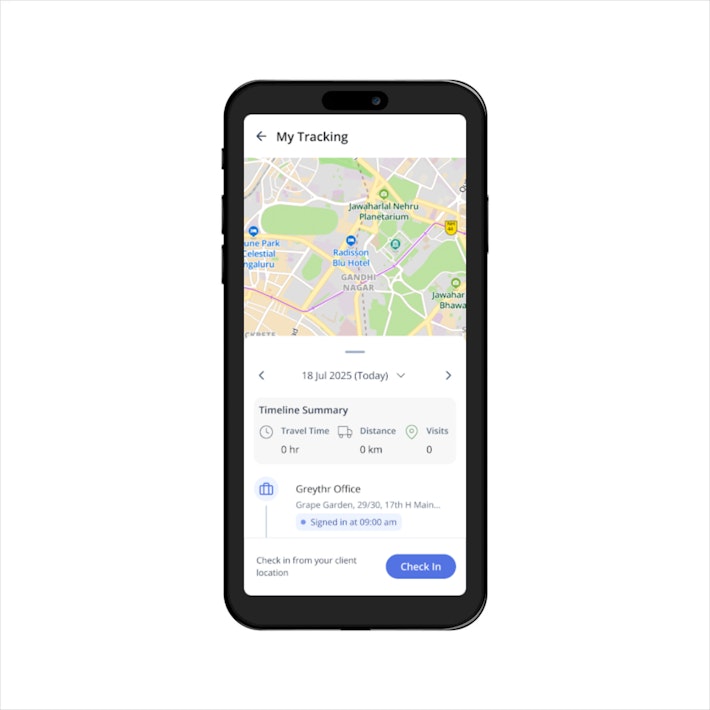
Once confirmed, the check-in entry is recorded in the tracking timeline.
Note: If the location is configured by your admin, the configured location name is displayed in your timeline. For locations that are not configured, the captured address is displayed instead.
Check Out
Tap Check Out after completing work at the client location.
The check-out is recorded and added to the timeline.
This flow can be repeated for multiple client visits during the day.
Viewing tracking for current and previous dates
You can view tracking timelines for the current or previous dates:
From the home page, if signed in for the day, or
From Explore > Attendance > My Tracking
From the calendar on the My Tracking screen, select a date. Once selected, the complete timeline and summary for that day are displayed.
GPS Signal or Location Turned Off
If the GPS signal is lost due to poor network coverage or if location services are manually turned off during the day, the event is recorded in the tracking timeline. This ensures transparency in attendance and movement records.
Note: If the app is unable to fetch your location, load your tracking details, or complete a check-in/check-out, you'll see a simple message such as Unable to fetch the current location or Unable to load tracking details. Please try again.
Sign Out and End of Day
At the end of the workday:
Open the greytHR mobile app and tap Sign Out.
The app records the final location and ends the tracking timeline for the day.
After sign-out, the GPS tracking stops for the day, and the View My Tracking option is no longer visible on the homepage.
Note: GPS Live Tracking labels are available in English, Hindi,Tamil, Kannada and Telugu. Users can switch the interface, labels, and messages to their preferred language for a more personalized experience.
Privacy and Visibility
You can view only your own GPS tracking data.
Tracking information is available to managers based on configured access rights.
GPS tracking is enabled only after the employee provides explicit consent through app location permissions.
Tracking is strictly limited to working hours and is active only between sign-in and sign-out.
All data is securely stored within greytHR.
Best practices for using GPS Live Tracking
GPS tracking depends on device GPS and network availability, so small location differences may occur.
GPS accuracy may reduce in lifts, basements, underground parking, or areas with weak network.
Location permission must stay enabled while signed in.
Battery saver or power-saving modes may affect GPS tracking.
Use one device only. Switching or sharing devices can affect tracking accuracy.
Minor variations in distance or travel time are normal in GPS-based tracking.
Avoid changing location-related permissions or settings once configured. Any change can impact the accuracy and consistency of GPS tracking.
Related articles: