Configure Geofence in greytHR for Accurate Attendance
Updated in September-2024 | Subscribe to watch greytHR how-to video
A geofence is a virtual boundary defined by specific geographical coordinates such as latitude and longitude around a physical location. This allows you to share your precise radius which provides accuracy in recording your attendance. You can make use of the geofence functionality if you are based in a different location contrasting to your office location.
With the Setup Geofence feature in the greytHR Mobile application, you can personalize your geofence locations within the greytHR mobile app.
Note: You can view the Setup Geofence option in your greytHR mobile app only if your admin enables it for you.
To view the Setup Geofence screen, on your greytHR mobile application Home screen, in the top right corner, tap your Profile icon > Setup Geofence option.


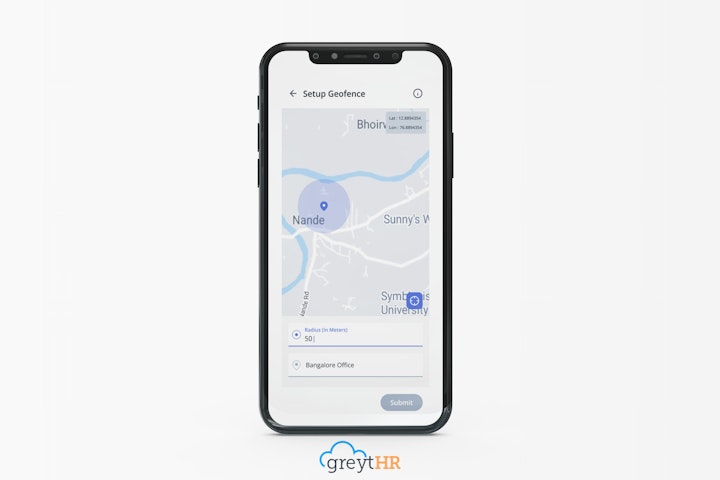
Set up geofence
For you to set up a geofence, your admin must share an access code with you via SMS. Once you receive the access code, perform the following actions to complete the settings:
From the greytHR mobile application Home screen, in the top right corner, tap your Profile icon > Setup Geofence option.
On the Setup Geofence screen, in the Access Code text box, enter the access code that you have received via SMS.
Note: The Access Code remains valid for a period of three days starting from the date of its generation.Click Next. A screen appears displaying the latitude and longitude details as Lat and Lon on the top right corner of the screen. These details auto-populate as per your current location.
Note:The Next tab is enabled only if the access code is valid.
If your device location is off, the Device location is Off screen appears guiding you to turn it on by clicking Go to Settings.
Under Radius (in Meters), enter the required radius.
Under Location Name, enter the location details that are different from your existing location.
Click Submit. A success message appears.
Note:
Click the ℹ️ icon on the top right corner of the Setup Geofence screen to learn more about the Current Location, Define Radius, and Circumference.
The employee can configure only one location with one access code.
Other related links: