Verify employee bank accounts in greytHR
Updated in August -2026 | Subscribe to watch greytHR how-to video
Salary payouts fail more often than they should, and usually for a simple reason: a wrong account number or an incorrect IFSC code that no one catches until the money doesn't reach the employee. Until now, greytHR had no way to check whether an employee's bank details were actually valid until the payout itself was attempted.
With Bank Account Verification, greytHR now validates employee bank accounts upfront using a real‑time Penny Drop check, so you know an account is good before payroll runs, not after.
Note: Bank Account Verification uses a Penny Drop API call. Each verification attempt costs ₹15. This is currently supported for India-based bank accounts only.
To view the Bank account verification page, from the greytHR admin portal, hover over the 9 dots and go to Payroll > Admin > Bank Verification Status
Bank account verification
To verify employee bank accounts, from the greytHR admin portal, hover over the 9 dots and go to Payroll > Admin > Bank Verification Status
Using the Verification Status, Employee, Employee Filter, and Employee Status filters, customize the employee list as per your requirement.
Select the checkbox(es) next to the employee(s) whose bank account you want to verify. To verify all the listed accounts, select the checkbox in the header row.
Click Verify Bank Status. A pop up appears.Note: greytHR sends ₹1 to each selected account to confirm it exists and matches the employee's name.
Click Confirm.
The Verification Status column updates to Verified or Not Verified for each employee.
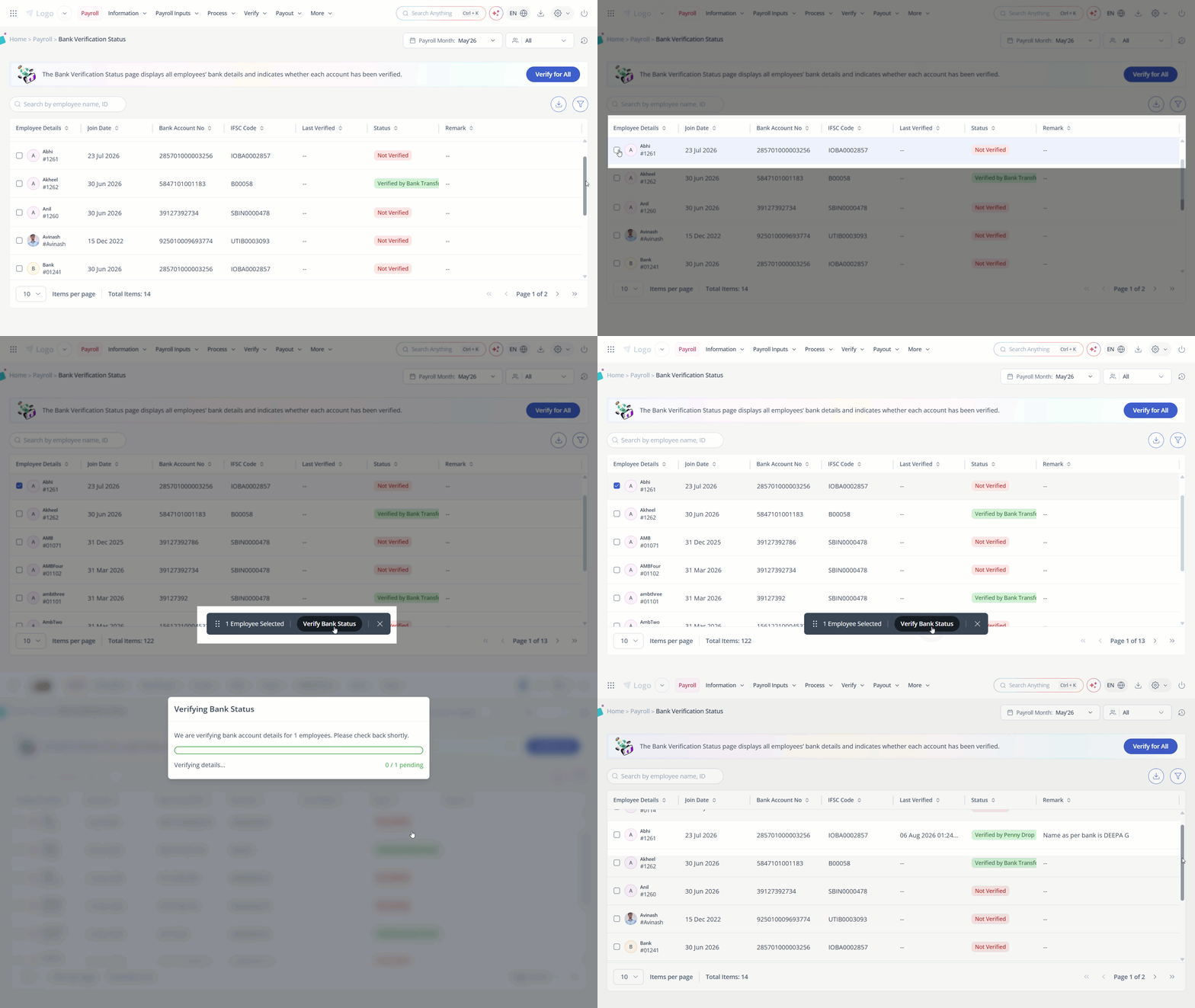
Note: Each verification attempt costs ₹15 and is currently supported for India-based bank accounts only.
You can verify accounts one at a time or select multiple employees by clicking Verify for All.


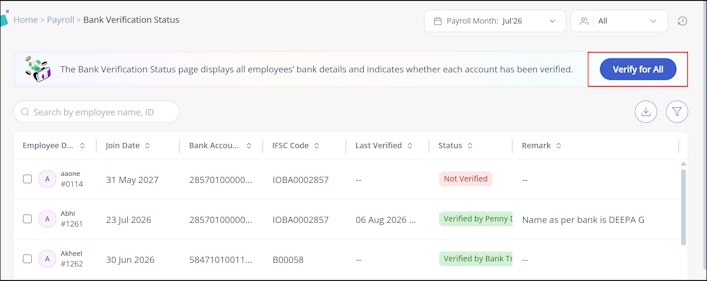
If a verification attempt fails
If verification fails for an employee, you'll see the failure reason in the Remark column against that employee on the Bank Status page. To try again:
Select the checkbox next to the employee whose verification failed.
Click Verify Bank Status again.
Bank verification statuses
Not Verified – The default status before verification has been initiated for the employee.
Verified by penny drop – The verification attempt succeeded.
Verification Failed – The verification attempt failed. The reason is shown in the Remark column against the employee.
Reverify bank accounts after an update
The status displayed will always reflect the last verification attempt only. If the account number or IFSC is updated, you will have to verify again to see the latest status for it.
Export bank status data
You can click the Export to Excel icon on the Bank Status page to download the full list of employees with their verification status for offline review or audit purposes.
Frequently Asked Questions
What is bank account verification in greytHR?
It's a real-time check that confirms an employee's bank account exists and belongs to them, before salary is disbursed. greytHR uses a Penny Drop API to send ₹1 to the account and match the account holder's name with the employee's name on record.
How much does each verification attempt cost?
Each verification attempt costs ₹15.
Can admins verify multiple employees at once?
Yes. On the Bank Status page, you can select multiple employees and verify their accounts in bulk, instead of verifying one at a time.
What does "Verified by Penny Drop" mean?
An account shows as Verified by Penny Drop when the Penny Drop check confirms the account exists and the bank-returned account holder name matches the employee's name in greytHR.
What does "Not Verified" mean?
Not Verified covers any account that hasn't had a successful verification yet — this includes accounts that were never checked, checks that are still pending, and checks that failed.
What happens if a verification attempt fails?
You'll see the specific failure reason in the remarks column on the Bank Status page. You can retry the verification for that employee directly from the same page.
Does the status update automatically if bank details change?
No. The status displayed will always reflect the last verification attempt only. If the account number or IFSC is updated, the user will have to verify again to see the latest status for it
Is bank account verification available for all countries?
Currently, this is available for India-based bank accounts only.
Can admins export the bank verification data?
Yes. Use the Export to Excel option on the Bank Status page to download the full list of employees with their current verification status.
How can admins see which employees have failed or pending verification?
Use the Verification Status filter on the Bank Status page and filter by Not Verified this includes accounts that failed as well as those still pending.
Related Articles:
View and manage employees’ PAN status
Was this article helpful?
More resources:
▶ Video - Watch our how-to videos to learn more about greytHR.
📢 Product Update - Read about the product updates.