Send offer letters for digital signature in greytHR
Updated in August - 2026 | Subscribe to watch greytHR how-to video
Hiring a candidate often means a slow back-and-forth: generate the offer, get it signed internally, print or export it, send it to the candidate, wait for them to print, sign, scan, and upload it back. Every extra step is a chance for the offer to sit in someone's inbox a little longer — and a delayed offer is sometimes a lost candidate.
With Digital Signature for Offer Letters, greytHR Recruit lets you route an offer letter through Zoho Sign for e-signing. Internal signatories sign first, and once they're done, the candidate receives a secure link to review and digitally sign the offer — no printing, scanning, or manual uploads involved.
Digital signing shortens the time between generating an offer and getting it signed, which means faster offer acceptance and a smoother candidate experience. It also gives you a proper audit trail: every signature, timestamp, and status change is tracked in Zoho Sign, so you're not relying on a scanned PDF as proof. And because e-signature is enabled centrally, once it's turned on, it's available for every recruiter using the offer flow, not something each user configures individually.
Enable the Zoho Sign connector
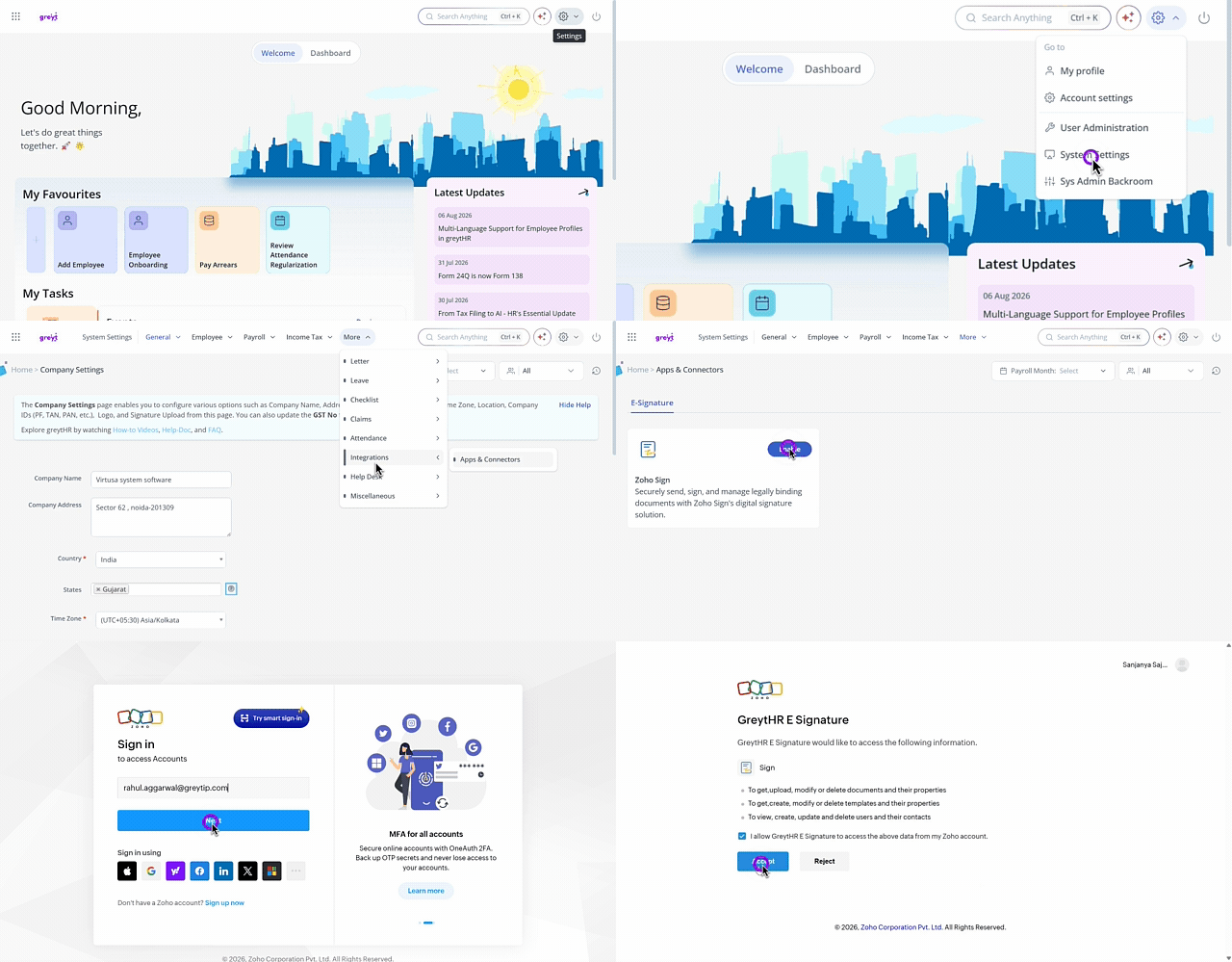
From the greytHR Admin portal, go to Settings icon > System Settings > Integrations > Connectors.
Under the E-signature tab, find the Zoho Sign connector card.
Click Enable.
In the Zoho Sign window that opens, enter Email id and Password, provide the consent and the connection is complete.
The connector status updates to Enabled.
Note: Only users with the Majordomo or Admin role can connect to Zoho Sign. Recruit users don't have access to enable or disable this connector.
Once enabled, the e-signature option becomes available to all recruiters in the Send Offer / Extend Offer flow. If you turn the toggle Off, the digital signature option is hidden from the offer flow across Recruit.
If a recruiter tries to access a digital signature from Recruit before this is set up, they'll see a prompt to set up the integration, which takes them to this same Integrations page.
Add internal signatories and enable digital signature
You configure digital signature while creating the offer, in the Approvals & Signatories step.
Start creating an offer for a candidate: Choose Template → Fill Details → Compensation Details → Preview Document → Approvals & Signatories.
(Optional) Turn on Request for approvals if you want the offer reviewed internally before it's sent. Add one or more reviewers and set their priority/order.
In the Signatories section, turn on the toggle to enable digital signature for this offer.
Click + Add Internal Signatory and select employees who need to sign the offer internally.
You can add up to 3 internal signatories.
Internal signatories are optional — you can enable digital signature with candidate-only signing if no internal sign-off is needed.
All internal signatories sign in parallel; there's no order or priority between them.
The candidate's signature is included automatically — this can't be removed once digital signature is on.
Under Select Vendor, choose Zoho Sign.
Click Next, then Generate Offer.
Note: The number of internal signatories you add can't exceed the number of signature placeholders ({{signature.internal1}}, {{signature.internal2}}, {{signature.internal3}}) built into the offer letter template. Make sure your template has enough placeholders before adding signatories.
Reviewers, signatories, and the vendor selection remain editable until you click Send Offer. After that, only the expiry date stays editable.
Send the offer
If reviewers are configured, the Send Offer button stays disabled until all reviewers approve.
If no reviewers are configured, Send Offer becomes active as soon as the offer is generated.
When you click Send Offer:
greytHR sends the complete offer — document, internal signatories, and candidate — to Zoho Sign in a single request, along with the signing sequence (internal signatories first, in parallel; candidate afterward).
greytHR also sends the candidate an informational email from its own domain, letting them know their offer is on its way and that a signing link from Zoho Sign will follow once internal signing is done.
The offer status updates to Pending Signatures.
All fields except the expiry date are now locked.
Note: When digital signature is enabled for an offer, the standard greytHR accept/reject flow (where the candidate gets a greytHR link to accept or reject) does not apply. Signing via Zoho Sign is what confirms the candidate's acceptance.
What the candidate experiences
The candidate first receives an informational email from greytHR confirming the offer and letting them know a signing link is on its way.
Once all internal signatories have signed, Zoho Sign automatically sends the candidate a secure signing link.
The candidate opens the link, reviews the offer (with internal signatures already visible on the document), and signs digitally — by drawing, typing, or uploading a signature.
Signing the document is equivalent to accepting the offer; no separate accept action is needed.
Once the candidate signs, everyone involved — including the candidate — receives the final countersigned document from Zoho Sign.
Track signing status
Open the candidate's profile and go to the Offer tab to see where the offer stands:
Reviewers — shows each reviewer's name with status: Pending or Approved.
Internal Signatories — shows each signatory's name with status: Pending Signature or Signed.
Candidate — shows status as Waiting for internal signatures, Pending Signature, or Signed.
Once everything is signed, the Offer tab shows both the original generated offer and the final countersigned document.
Note: Status is refreshed each time you open the Offer tab — it isn't pushed to you in real time. If you make changes directly in your Zoho Sign console (for example, editing a signatory's email), the status shown in greytHR may not reflect that change right away.
Frequently Asked Questions
What is digital signature for offer letters in greytHR?
It's a feature that lets you send offer letters for e-signature through Zoho Sign instead of the manual print-sign-scan-upload process. Internal signatories sign first, and the candidate signs once internal signing is complete.
Which e-signature vendor does greytHR support?
Currently, Zoho Sign is the only supported e-signature vendor.
Where do I enable digital signature for offer letters?
From the greytHR Admin portal, go to Settings icon > System Settings > Integrations > Connectors.
Under the E-signature tab, find the Zoho Sign connector card.
Click Enable.
In the Zoho Sign window that opens, enter Email id and Password, provide the consent and the connection is complete.
The connector status updates to Enabled.
Do I need a separate Zoho Sign subscription?
Yes. If you already have Zoho Sign, confirm with Zoho Sign support that your plan includes API access, not all plans do. If you don't have Zoho Sign, you'll need to subscribe to a plan that supports API access before connecting it to Recruit.
How do I check my Zoho Sign billing or plan details?
Contact Zoho Sign support directly through your Zoho account. greytHR doesn't manage or bill for your Zoho Sign subscription.
Does greytHR bill me for Zoho Sign usage?
No. Zoho bills you directly for your Zoho Sign plan through your Zoho account. greytHR only sends signature requests through the API, it doesn't act as a reseller or billing intermediary. Any charges related to signature volume or plan tier will appear on your Zoho invoice, not your greytHR invoice.
Who can enable or disable the Zoho Sign connector?
Only users with the Majordomo or Admin role can connect or disconnect Zoho Sign. Recruit users don't have access to this setting.
What happens if Zoho Sign is not enabled?
Recruiters won't see the digital signature option in the Send Offer / Extend Offer flow. The offer proceeds through the standard offer flow instead.
How many internal signatories can I add to an offer?
Up to 3 internal signatories. Adding a signatory beyond this limit isn't allowed.
Do I need to add internal signatories to use digital signature?
No. Internal signatories are optional. You can enable digital signature for candidate-only signing without adding any internal signatories.
In what order do internal signatories and the candidate sign?
Internal signatories sign in parallel — there's no priority or order among them. Once all internal signatories have signed, the offer moves to the candidate for signing.
Where do I add signatories and enable digital signature?
While creating an offer, go to the Approvals & Signatories step, turn on the Signatories toggle, and add your internal signatories there. The candidate's signature is included automatically.
Can I still edit signatories after sending the offer?
No. Once you click Send Offer, reviewers, signatories, and the vendor selection are locked. Only the expiry date remains editable.
What does the candidate receive when I click Send Offer?
The candidate first gets an informational email from greytHR letting them know their offer is on its way. Once internal signatories finish signing, the candidate receives a separate signing email directly from Zoho Sign with a secure link.
Does the candidate still need to accept the offer separately?
No. When digital signature is enabled, signing the document through Zoho Sign is the candidate's acceptance.
How do I check the status of an offer sent for signature?
Open the candidate's profile and go to the Offer tab. You'll see the status of reviewers (if configured), internal signatories, and the candidate — for example, Pending, Approved, Pending Signature, or Signed.
Does the status update in real time?
No. Status is refreshed each time you open the Offer tab — there are no real-time push updates in this release.
What if I disable Zoho Sign while an offer is still being signed?
Internal signatories can still complete their signature, but the offer status won't update in greytHR, the offer can't be revoked, and the candidate won't receive the Zoho Sign signing request. Avoid disabling the connector while offers are actively in the signing process.
Is there a limit on how many offer letter templates support digital signature?
Any offer letter template can support digital signature as long as it includes the required signature placeholders ({{signature.internal1}}, {{signature.internal2}}, {{signature.internal3}} for internal signatories, and {{signature.candidate}} for the candidate). The number of internal signatories you add on an offer can't exceed the number of internal signature placeholders in the template.
Related articles:
Automate salary structure in offer letters in greytHR Recruit
Was this article helpful?
More resources:
▶ Video - Watch our how-to videos to learn more about greytHR.
❓ FAQs - Solve your queries using FAQs.
📢 Product Update - Read about the product updates.